Quick answer: The XTEINK X4 Pro is not an e-ink monitor. It is a $99 pocket e-reader with a 4.3 inch, 219 PPI screen and no video input, so it cannot replace your laptop display. If you want an e-ink screen for writing or coding, you need a real e-ink monitor like the Dasung Paperlike 13K ($679 and up) or the Onyx Boox Mira ($799.99), both of which plug into a computer over HDMI or USB-C.
Disclosure: this article contains affiliate links. If you buy through them, we may earn a commission at no extra cost to you. Prices were checked in September 2026.
What Is the XTEINK X4 Pro, Really?
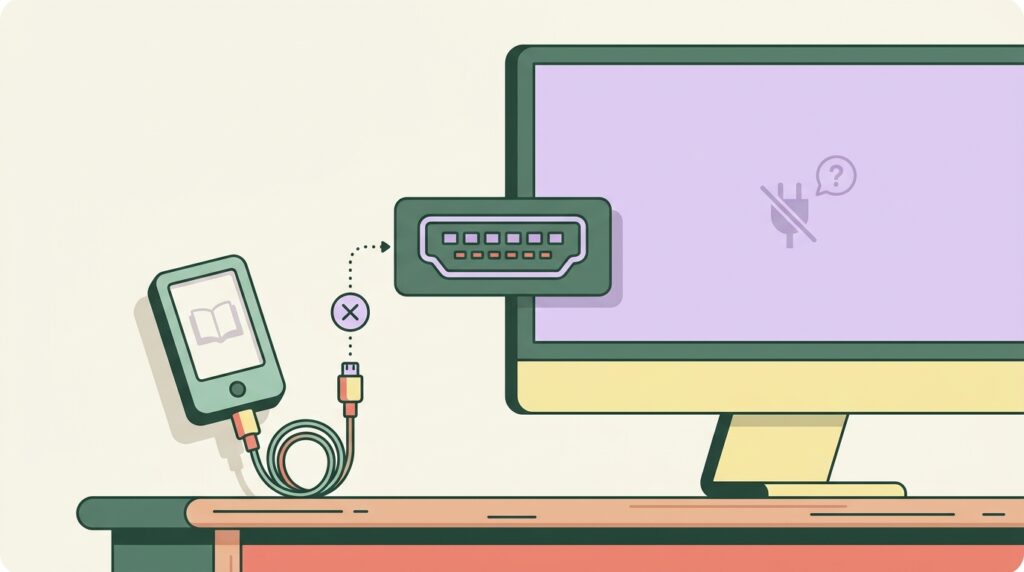
The name gets thrown around online as an “e-ink monitor,” but the XTEINK X4 Pro is a pocket e-reader, the same category as a Kindle, just smaller. It has a 4.3 inch e-ink panel at 219 PPI, a touchscreen plus physical page buttons, an adjustable warm and cool front light, 16GB of storage (expandable to 256GB via microSD), a 1100mAh battery, and it weighs 72 grams. It charges over a pogo pin connector and syncs books through Wi-Fi, Bluetooth, or the companion app. There is no HDMI port, no USB-C video input, and no way to mirror a laptop screen onto it.
That distinction matters because the whole reason people search for “e-ink monitor” is to get a second screen next to their laptop, something they can write or read code on for hours without the fatigue of a backlit LCD. The X4 Pro cannot do that job. It is a book, not a display. Anyone buying it expecting a Dasung-style monitor experience will be disappointed the moment they try to plug it into anything.
Where the X4 Pro does deliver is exactly what a good e-reader should: distraction-free long-form reading. It loads TXT, EPUB, MOBI, PDF, JPG, and PNG files, so it works for personal documents, manuscripts, and PDFs you export from a word processor, not just novels. If your actual use case is reading long PDFs, drafts, or research papers away from a screen full of notifications, the X4 Pro fits, it just is not the monitor category this review title implies.
XTEINK X4 Pro and X3 Price and Specs
XTEINK currently sells two active reader lines: the X3 and the X4 Pro (an older “X4” without touch or front light also exists in some listings). Here is what the official comparison page shows:
| Model | Screen | Touchscreen | Front Light | Battery | Weight | Price |
|---|---|---|---|---|---|---|
| X3 | 3.7″ | No | No | 650mAh | 58g | $69.00 |
| X4 Pro | 4.3″, 219 PPI | Yes | Yes (warm/cool) | 1100mAh | 72g | $99.00 |
Both ship with a 30-day return window and a one-year warranty, and XTEINK’s own terms note that damage from unofficial firmware voids that warranty, so do not flash third-party software onto the device if you want to keep it covered. For the $30 price difference, the X4 Pro’s touchscreen and front light make it the easier daily driver; the X3 only makes sense if you specifically want the smallest, cheapest option and can live with buttons-only navigation in daylight. You can check current stock and the exact sale price on the XTEINK product page.
What a Real E-Ink Monitor Costs: Dasung vs. Onyx Boox Mira
If your goal is actually an e-ink screen for your desk, two companies build them: Dasung and Onyx (maker of the Boox Mira line). Both connect to a Mac or PC as a genuine second monitor over HDMI, USB-C, or DisplayPort. Neither is cheap.
| Monitor | Size | Resolution | Refresh | Ports | Price |
|---|---|---|---|---|---|
| Dasung Link 2 | 6.7″ | Not published | 60Hz | HDMI | from $329 |
| Dasung Paperlike 103 | 10.3″ | Not published | 60Hz | HDMI | $339 |
| Dasung Paperlike 13K (mono) | 13.3″ | 3K | 37Hz | HDMI, USB-C | from $679 |
| Onyx Boox Mira | 13.3″ | 1650×2200, 207 PPI | Variable (BSR modes) | 2x USB-C, Mini HDMI | $799.99 |
| Dasung Paperlike 253 (mono) | 25.3″ | 3200×1800 | 50Hz | HDMI, USB-C, DisplayPort, USB | from $1,548 |
| Onyx Boox Mira Pro (color) | 25.3″ | 3200×1800, 145 PPI, 4096 colors | Variable (BSR modes) | HDMI, Mini HDMI, DisplayPort, USB-C | $1,899.99 |
That is the real comparison the “XTEINK e-ink monitor” searches are actually looking for. A 13.3 inch e-ink monitor starts around $679 to $799, and a 25.3 inch one runs $1,548 to $1,899. Against a 27 inch LCD that costs $150 to $300, that is five to ten times the price for a single black-and-white or muted-color screen with a refresh rate slower than any LCD you have used. The Boox Mira line is also worth noting for its stand: it ships with no internal processor or RAM, it is purely a dumb display, which keeps latency lower than a tablet trying to double as a monitor.
Who Actually Benefits From Reading and Writing on E-Ink?

The honest case for e-ink is narrow but real. It fits three groups: people who read or edit long documents for hours at a stretch, people doing line-by-line code review where they are scrolling and reading rather than actively typing fast, and people who have already been told by an eye doctor that screen glare and blue light are aggravating their symptoms. E-ink panels do not emit light, they reflect ambient light the way paper does, so there is no backlight glare and no direct blue light source hitting your eyes for hours.
The research on this is more mixed than most marketing pages admit. A controlled study by Siegenthaler and colleagues, published in Displays and indexed on PubMed, found that fatigue and visual strain while reading were largely similar between LCD and e-ink displays, not dramatically different. On the other side, a 2023 study backed by the Harvard T.H. Chan School of Public Health and E Ink itself found that brighter, bluer light from LCDs put more stress on retinal cells than E Ink’s ComfortGaze front light, up to three times less stress in their measurements. Note that study was industry-funded, which does not make it wrong, but it is a reason to treat “three times healthier for your eyes” as a marketing claim to verify with your own eye doctor rather than a settled medical fact. If you already get headaches or dry eyes from long screen sessions, per the American Optometric Association’s own research most Americans report some symptom of digital eye strain, an e-ink secondary display is a reasonable thing to test. If you do not have that problem today, do not expect an e-ink monitor to fix a problem you do not have.
What E-Ink Still Cannot Do
Be clear-eyed about the trade-offs before spending $700 or more:
- Ghosting. Every e-ink panel leaves faint traces of the previous screen state behind, especially in fast refresh modes. Dasung and Boox both offer a full-refresh button or gesture for exactly this reason, and you will use it often.
- Scroll and cursor lag. Even at 50Hz (Dasung Paperlike 253) or Boox’s fastest BSR mode, moving a mouse cursor or scrolling a long web page feels noticeably behind an LCD. Typing text is fine; anything with motion is not.
- No real video. You cannot watch YouTube, join a video call, or edit video on any of these panels in a usable way. The refresh rate is too low and, on monochrome models, there is no color at all.
- Limited or muted color. The color Boox Mira Pro and Dasung Paperlike Color models use E Ink’s Kaleido tech, which shows color but at lower saturation and resolution than an LCD. It is closer to a color newspaper than a monitor.
- Not for design work. Photo editing, video color grading, and UI design all depend on accurate, fast-updating color. E-ink is the wrong tool for any of that, full stop.
Who Should Buy a Cheap Anti-Glare LCD Instead
If what you actually want is less glare and a comfortable second screen, not the full e-ink experience, spend a fraction of the money on a matte LCD portable monitor instead. UPERFECT’s BE156GF is a 15.6 inch, 1080p, matte-screen portable monitor at $129.99, roughly one-fifth the price of the cheapest 13.3 inch e-ink monitor. UPERFECT’s matte line runs from about $130 for a 1080p panel up to $320 for a 2K model, and the company backs its monitors with a 60-day return window, so you can test whether glare reduction alone solves your problem before you consider spending $700-plus on e-ink.
This is the right call for most people. A matte LCD still refreshes at 60Hz or higher, supports full color, plays video, and costs less than one-fifth of a Dasung or Boox Mira. Reach for e-ink only after you have confirmed a matte LCD is not enough, because glare and brightness, not the backlight itself, are what bother most people. You can compare current UPERFECT matte models on their official product page before deciding.
Who Should Skip E-Ink Devices Entirely
Do not buy any e-ink screen, pocket reader or monitor, if any of this is you:
- You need to watch video, join video calls, or do anything with motion on the second screen.
- Your work involves photo, video, or UI color accuracy.
- You mostly browse the web or scroll social feeds; the lag will frustrate you daily.
- You already read comfortably on your current laptop or LCD monitor with no eye strain complaints; there is no problem here to solve.
- You want the X4 Pro specifically as a second monitor. It has no video input of any kind and cannot do this job at any price.
For office and productivity workflows in general, most teams get more daily value from software that reduces screen time in the first place, like the tools rounded up in this list of office productivity AI tools, than from swapping hardware.
Frequently Asked Questions
Is the XTEINK X4 Pro an e-ink monitor I can plug into my laptop?
No. It has no HDMI or USB-C video input. It is a standalone pocket e-reader that syncs files over Wi-Fi, Bluetooth, or its companion app, not a second display.
What is the cheapest real e-ink monitor I can buy?
The Dasung Link 2 starts at $329 for a 6.7 inch panel, and the Dasung Paperlike 103 is $339 for 10.3 inches. The cheapest full-size option for serious document or code work is the Dasung Paperlike 13K at $679.
Does the Onyx Boox Mira show color?
The base Boox Mira (13.3 inch, $799.99) is grayscale only. The Boox Mira Pro Color version ($1,899.99, 25.3 inch) shows up to 4096 colors using E Ink’s Kaleido 3 panel, but at lower saturation than an LCD.
Will an e-ink screen definitely reduce my eye strain?
Not definitively. A peer-reviewed study by Siegenthaler et al. found reading fatigue on LCD and e-ink to be broadly similar, while a separate, E Ink-funded Harvard study found lower measured retinal stress on e-ink. Treat “healthier for your eyes” as a claim worth testing yourself, not a guarantee, and talk to an eye doctor if symptoms persist regardless of display.
Should I buy an e-ink monitor or just a matte LCD?
Start with a matte LCD like the UPERFECT BE156GF at $129.99. It solves glare for a fraction of the cost. Only move to a $679-plus e-ink monitor if glare reduction alone was not enough and you specifically need the paper-like, no-blue-light reading experience for hours of text-heavy work.
Can I use the XTEINK X4 Pro for reading PDFs from my job?
Yes, for that specific use it works well. It supports PDF, EPUB, MOBI, TXT, JPG, and PNG, so you can load reports, manuscripts, or research papers and read them away from a notification-filled screen. Just do not expect it to replace a monitor.
Bottom Line
The XTEINK X4 Pro is a genuinely cheap, well-specced pocket reader at $99, and a fine choice if you want a distraction-free device for long PDFs and ebooks. It is not, and cannot be, an e-ink monitor. If a second e-ink display for writing or code review is what you are actually after, budget $679 and up for a Dasung Paperlike 13K or $799.99 for an Onyx Boox Mira, and go in knowing you are trading speed and color for glare-free reading. For most people chasing “less eye strain” rather than a specific paper-like workflow, a $130 matte LCD like the UPERFECT BE156GF solves the actual problem for a lot less money. And if you are building out a broader productivity stack around your desk setup, this roundup of free office productivity AI tools is a better first upgrade than new hardware.