XTEINK X4 Pro Review 2026: Who Actually Needs an E-Ink Screen?
Quick answer: The XTEINK X4 Pro is not an e-ink monitor. It is a $99 pocket e-reader with a 4.3 inch, 219 PPI screen and no video input, so it cannot replace your laptop display. If you want an e-ink screen for writing or coding, you need a real e-ink monitor like the Dasung Paperlike 13K ($679 and up) or the Onyx Boox Mira ($799.99), both of which plug into a computer over HDMI or USB-C.
Disclosure: this article contains affiliate links. If you buy through them, we may earn a commission at no extra cost to you. Prices were checked in September 2026.
What Is the XTEINK X4 Pro, Really?
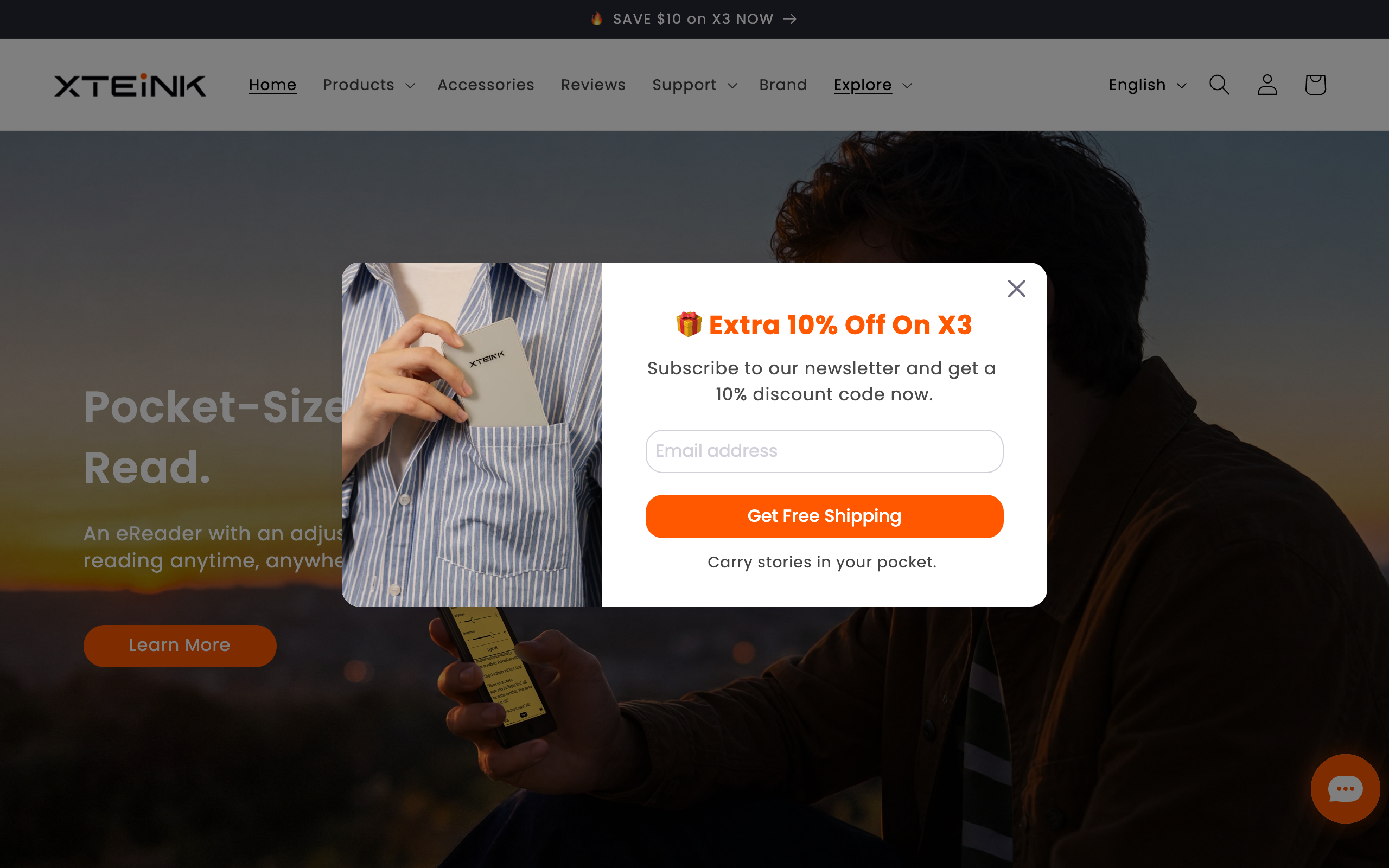
The name gets thrown around online as an “e-ink monitor,” but the XTEINK X4 Pro is a pocket e-reader, the same category as a Kindle, just smaller. It has a 4.3 inch e-ink panel at 219 PPI, a touchscreen plus physical page buttons, an adjustable warm and cool front light, 16GB of storage (expandable to 256GB via microSD), a 1100mAh battery, and it weighs 72 grams. It charges over a pogo pin connector and syncs books through Wi-Fi, Bluetooth, or the companion app. There is no HDMI port, no USB-C video input, and no way to mirror a laptop screen onto it.
That distinction matters because the whole reason people search for “e-ink monitor” is to get a second screen next to their laptop, something they can write or read code on for hours without the fatigue of a backlit LCD. The X4 Pro cannot do that job. It is a book, not a display. Anyone buying it expecting a Dasung-style monitor experience will be disappointed the moment they try to plug it into anything.
Where the X4 Pro does deliver is exactly what a good e-reader should: distraction-free long-form reading. It loads TXT, EPUB, MOBI, PDF, JPG, and PNG files, so it works for personal documents, manuscripts, and PDFs you export from a word processor, not just novels. If your actual use case is reading long PDFs, drafts, or research papers away from a screen full of notifications, the X4 Pro fits, it just is not the monitor category this review title implies.
XTEINK X4 Pro and X3 Price and Specs
XTEINK currently sells two active reader lines: the X3 and the X4 Pro (an older “X4” without touch or front light also exists in some listings). Here is what the official comparison page shows:
| Model | Screen | Touchscreen | Front Light | Battery | Weight | Price |
|---|---|---|---|---|---|---|
| X3 | 3.7″ | No | No | 650mAh | 58g | $69.00 |
| X4 Pro | 4.3″, 219 PPI | Yes | Yes (warm/cool) | 1100mAh | 72g | $99.00 |
Both ship with a 30-day return window and a one-year warranty, and XTEINK’s own terms note that damage from unofficial firmware voids that warranty, so do not flash third-party software onto the device if you want to keep it covered. For the $30 price difference, the X4 Pro’s touchscreen and front light make it the easier daily driver; the X3 only makes sense if you specifically want the smallest, cheapest option and can live with buttons-only navigation in daylight. You can check current stock and the exact sale price on the XTEINK product page.
What a Real E-Ink Monitor Costs: Dasung vs. Onyx Boox Mira
If your goal is actually an e-ink screen for your desk, two companies build them: Dasung and Onyx (maker of the Boox Mira line). Both connect to a Mac or PC as a genuine second monitor over HDMI, USB-C, or DisplayPort. Neither is cheap.
| Monitor | Size | Resolution | Refresh | Ports | Price |
|---|---|---|---|---|---|
| Dasung Link 2 | 6.7″ | Not published | 60Hz | HDMI | from $329 |
| Dasung Paperlike 103 | 10.3″ | Not published | 60Hz | HDMI | $339 |
| Dasung Paperlike 13K (mono) | 13.3″ | 3K | 37Hz | HDMI, USB-C | from $679 |
| Onyx Boox Mira | 13.3″ | 1650×2200, 207 PPI | Variable (BSR modes) | 2x USB-C, Mini HDMI | $799.99 |
| Dasung Paperlike 253 (mono) | 25.3″ | 3200×1800 | 50Hz | HDMI, USB-C, DisplayPort, USB | from $1,548 |
| Onyx Boox Mira Pro (color) | 25.3″ | 3200×1800, 145 PPI, 4096 colors | Variable (BSR modes) | HDMI, Mini HDMI, DisplayPort, USB-C | $1,899.99 |
That is the real comparison the “XTEINK e-ink monitor” searches are actually looking for. A 13.3 inch e-ink monitor starts around $679 to $799, and a 25.3 inch one runs $1,548 to $1,899. Against a 27 inch LCD that costs $150 to $300, that is five to ten times the price for a single black-and-white or muted-color screen with a refresh rate slower than any LCD you have used. The Boox Mira line is also worth noting for its stand: it ships with no internal processor or RAM, it is purely a dumb display, which keeps latency lower than a tablet trying to double as a monitor.
Who Actually Benefits From Reading and Writing on E-Ink?

The honest case for e-ink is narrow but real. It fits three groups: people who read or edit long documents for hours at a stretch, people doing line-by-line code review where they are scrolling and reading rather than actively typing fast, and people who have already been told by an eye doctor that screen glare and blue light are aggravating their symptoms. E-ink panels do not emit light, they reflect ambient light the way paper does, so there is no backlight glare and no direct blue light source hitting your eyes for hours.
The research on this is more mixed than most marketing pages admit. A controlled study by Siegenthaler and colleagues, published in Displays and indexed on PubMed, found that fatigue and visual strain while reading were largely similar between LCD and e-ink displays, not dramatically different. On the other side, a 2023 study backed by the Harvard T.H. Chan School of Public Health and E Ink itself found that brighter, bluer light from LCDs put more stress on retinal cells than E Ink’s ComfortGaze front light, up to three times less stress in their measurements. Note that study was industry-funded, which does not make it wrong, but it is a reason to treat “three times healthier for your eyes” as a marketing claim to verify with your own eye doctor rather than a settled medical fact. If you already get headaches or dry eyes from long screen sessions, per the American Optometric Association’s own research most Americans report some symptom of digital eye strain, an e-ink secondary display is a reasonable thing to test. If you do not have that problem today, do not expect an e-ink monitor to fix a problem you do not have.
What E-Ink Still Cannot Do
Be clear-eyed about the trade-offs before spending $700 or more:
- Ghosting. Every e-ink panel leaves faint traces of the previous screen state behind, especially in fast refresh modes. Dasung and Boox both offer a full-refresh button or gesture for exactly this reason, and you will use it often.
- Scroll and cursor lag. Even at 50Hz (Dasung Paperlike 253) or Boox’s fastest BSR mode, moving a mouse cursor or scrolling a long web page feels noticeably behind an LCD. Typing text is fine; anything with motion is not.
- No real video. You cannot watch YouTube, join a video call, or edit video on any of these panels in a usable way. The refresh rate is too low and, on monochrome models, there is no color at all.
- Limited or muted color. The color Boox Mira Pro and Dasung Paperlike Color models use E Ink’s Kaleido tech, which shows color but at lower saturation and resolution than an LCD. It is closer to a color newspaper than a monitor.
- Not for design work. Photo editing, video color grading, and UI design all depend on accurate, fast-updating color. E-ink is the wrong tool for any of that, full stop.
Who Should Buy a Cheap Anti-Glare LCD Instead
If what you actually want is less glare and a comfortable second screen, not the full e-ink experience, spend a fraction of the money on a matte LCD portable monitor instead. UPERFECT’s BE156GF is a 15.6 inch, 1080p, matte-screen portable monitor at $129.99, roughly one-fifth the price of the cheapest 13.3 inch e-ink monitor. UPERFECT’s matte line runs from about $130 for a 1080p panel up to $320 for a 2K model, and the company backs its monitors with a 60-day return window, so you can test whether glare reduction alone solves your problem before you consider spending $700-plus on e-ink.
This is the right call for most people. A matte LCD still refreshes at 60Hz or higher, supports full color, plays video, and costs less than one-fifth of a Dasung or Boox Mira. Reach for e-ink only after you have confirmed a matte LCD is not enough, because glare and brightness, not the backlight itself, are what bother most people. You can compare current UPERFECT matte models on their official product page before deciding.
Who Should Skip E-Ink Devices Entirely
Do not buy any e-ink screen, pocket reader or monitor, if any of this is you:
- You need to watch video, join video calls, or do anything with motion on the second screen.
- Your work involves photo, video, or UI color accuracy.
- You mostly browse the web or scroll social feeds; the lag will frustrate you daily.
- You already read comfortably on your current laptop or LCD monitor with no eye strain complaints; there is no problem here to solve.
- You want the X4 Pro specifically as a second monitor. It has no video input of any kind and cannot do this job at any price.
For office and productivity workflows in general, most teams get more daily value from software that reduces screen time in the first place, like the tools rounded up in this list of office productivity AI tools, than from swapping hardware.
Frequently Asked Questions
Is the XTEINK X4 Pro an e-ink monitor I can plug into my laptop?
No. It has no HDMI or USB-C video input. It is a standalone pocket e-reader that syncs files over Wi-Fi, Bluetooth, or its companion app, not a second display.
What is the cheapest real e-ink monitor I can buy?
The Dasung Link 2 starts at $329 for a 6.7 inch panel, and the Dasung Paperlike 103 is $339 for 10.3 inches. The cheapest full-size option for serious document or code work is the Dasung Paperlike 13K at $679.
Does the Onyx Boox Mira show color?
The base Boox Mira (13.3 inch, $799.99) is grayscale only. The Boox Mira Pro Color version ($1,899.99, 25.3 inch) shows up to 4096 colors using E Ink’s Kaleido 3 panel, but at lower saturation than an LCD.
Will an e-ink screen definitely reduce my eye strain?
Not definitively. A peer-reviewed study by Siegenthaler et al. found reading fatigue on LCD and e-ink to be broadly similar, while a separate, E Ink-funded Harvard study found lower measured retinal stress on e-ink. Treat “healthier for your eyes” as a claim worth testing yourself, not a guarantee, and talk to an eye doctor if symptoms persist regardless of display.
Should I buy an e-ink monitor or just a matte LCD?
Start with a matte LCD like the UPERFECT BE156GF at $129.99. It solves glare for a fraction of the cost. Only move to a $679-plus e-ink monitor if glare reduction alone was not enough and you specifically need the paper-like, no-blue-light reading experience for hours of text-heavy work.
Can I use the XTEINK X4 Pro for reading PDFs from my job?
Yes, for that specific use it works well. It supports PDF, EPUB, MOBI, TXT, JPG, and PNG, so you can load reports, manuscripts, or research papers and read them away from a notification-filled screen. Just do not expect it to replace a monitor.
Bottom Line
The XTEINK X4 Pro is a genuinely cheap, well-specced pocket reader at $99, and a fine choice if you want a distraction-free device for long PDFs and ebooks. It is not, and cannot be, an e-ink monitor. If a second e-ink display for writing or code review is what you are actually after, budget $679 and up for a Dasung Paperlike 13K or $799.99 for an Onyx Boox Mira, and go in knowing you are trading speed and color for glare-free reading. For most people chasing “less eye strain” rather than a specific paper-like workflow, a $130 matte LCD like the UPERFECT BE156GF solves the actual problem for a lot less money. And if you are building out a broader productivity stack around your desk setup, this roundup of free office productivity AI tools is a better first upgrade than new hardware.
Disclosure: this article contains affiliate links. If you buy through them, we may earn a commission at no extra cost to you. Prices were checked in September 2026.
Quick answer: A WalkingPad works for real desk jobs, but only under about 2 mph, and only for tasks that do not need fast, error-free typing. The WalkingPad C2 tops out at 4 mph and costs $449 direct, but the useful working speed is closer to 1 to 1.5 mph. Above 2 mph, typing accuracy drops and video calls pick up machine noise and your own breathing. Below that, it genuinely offsets hours of sitting without wrecking your afternoon of Slack messages.
Why does sitting eight hours straight actually matter for your health?
It is not just posture. Mayo Clinic’s review of sitting research, pooling 13 studies covering more than 1 million people, found that adults who sat more than 8 hours a day with no offsetting physical activity carried a risk of death comparable to the risk from obesity or smoking. That is the headline number worth remembering the next time someone calls a walking pad a gadget. Extended sitting is also independently linked to higher blood pressure, elevated blood sugar, more visceral fat, and worse cholesterol, the same cluster of markers that define metabolic syndrome.
The counter-move does not require a gym. A Mayo Clinic study on active workstations, which included walking pads alongside stepper and standing desks, found the setups cut sedentary time and improved cognitive performance during work hours without dragging down job performance. A separate cluster-randomized controlled trial of overweight and obese office workers, published on PubMed Central, measured the same pattern with sit-to-stand and treadmill desks head to head. The point is not that a walking pad replaces exercise. It replaces zero activity with some activity, for hours you were already going to spend at your desk regardless.
Can you actually type and run video calls while walking? (The part reviews skip)
Yes, but the speed window is narrower than any marketing page admits. A peer-reviewed study on typing and cognitive performance during slow treadmill walking, published in PLOS One, found that a walking speed of 2.25 km/h, roughly 1.4 mph, produced typing performance statistically no different from sitting still. Both slower and faster speeds than that performed worse. A related study on PubMed measured walkers losing an average of 13 words per minute compared to seated typing at higher speeds, and one internal test of professional transcriptionists on treadmill desks clocked a 16 percent drop in speed, though their accuracy held steady because they instinctively traded speed for correctness.
The practical range that shows up across this research and real user reports: keep it under 2 mph for anything involving a keyboard, and closer to 1 to 1.5 mph if the task needs precision, like writing copy, coding, or filling out a form with exact figures. Above 2.5 mph, most people stop typing altogether and switch to reading, listening, or taking calls instead. Video calls have a second problem the typing studies do not cover: the treadmill’s own motor noise picks up on your microphone, and sustained walking changes your breathing pattern enough that other people on the call can hear it. Mute yourself when you are not talking, and drop your pace to a near-stroll, under 1.5 mph, for any call where you are expected to speak for more than a sentence at a time.
What is actually on the WalkingPad shelf in 2026
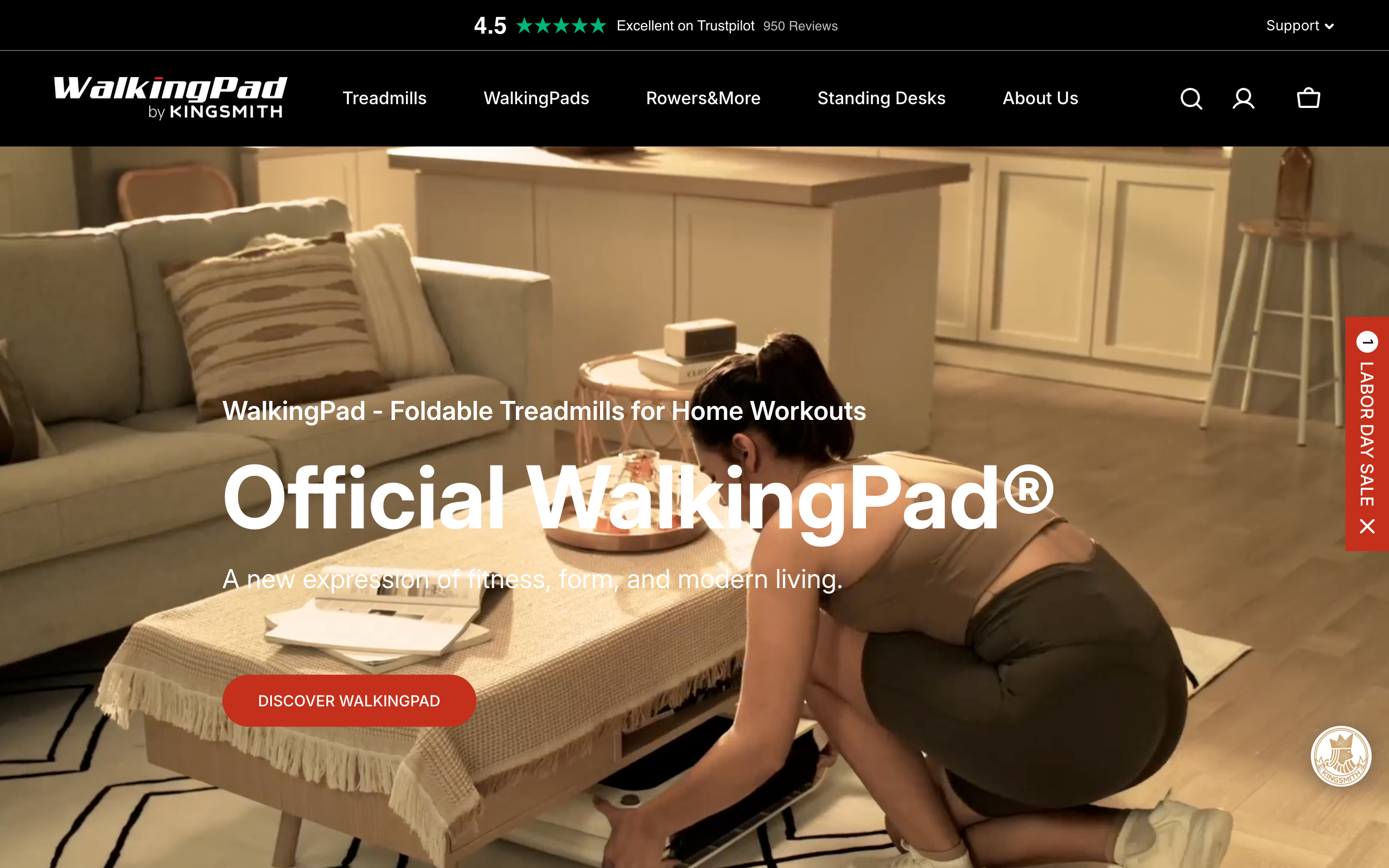
| Model | Price | Max speed | Weight capacity | Notes |
|---|---|---|---|---|
| WalkingPad Z1 | $299 | 4 mph | Not published | Thinnest, most compact model in the line |
| WalkingPad C2 | $449 | 4 mph | 220 lb (100 kg) | 3 HP motor, folds to 32.5 x 20.4 x 5.4 in, 55 lb net weight, KS Fit app |
| WalkingPad A1 Pro | $529 ($699 list) | 3.75 mph | 300 lb | Under 65 dB noise, folds to 32.5 x 21.5 x 5 in, wheels for moving it, HSA/FSA eligible |
| WalkingPad R2 | $599 | 7.5 mph | Not published | 2-in-1 walk and run, for households that also want a real running treadmill |
| WalkingPad X21 | $799 | 7.5 mph | Not published | Double-fold design for standing storage |
| WalkingPad X218/X25 | $799 to $899 | 10 to 11.5 mph | 300 lb | Built for running, overkill if all you want is walk-and-work |
For pure desk work, the A1 Pro is the one worth checking first. Its published under-65-dB noise rating is the only model where WalkingPad states a specific decibel number, and 65 dB sits close to normal conversation volume, quiet enough for most video calls if you stay under 1.5 mph. The C2 is the better-known, best-reviewed model and slightly cheaper, but WalkingPad has not published its noise level in decibels, so budget for it being audibly louder in a shared or open office. Check current pricing and stock directly on the WalkingPad site before buying, since these are sale prices that move.
How does WalkingPad compare to Urevo, Egofit, and Sperax?
| Brand / model | Price | Max speed | Weight capacity |
|---|---|---|---|
| WalkingPad A1 Pro | $529 | 3.75 mph | 300 lb |
| Urevo under-desk treadmill | $329.99 | 4.0 mph | 265 lb |
| Egofit Walker Pro-M1 | from $299 | Not published | Not published |
| Egofit ComfortDeck-M2 | from $359 ($499 list) | Not published | Not published |
| Sperax QuiteFit Q1 | $239 ($599.99 list) | 0.6 to 3.8 mph (walking mode) | 320 lb |
The honest read: Urevo and Sperax undercut WalkingPad on price by $150 to $250 and both publish a higher weight capacity than the C2’s 220 lb, which matters if that number is close to your actual weight. What you give up is brand maturity. WalkingPad has been building these specifically since the original mini models years ago and its KS Fit app, motor warranty terms, and community of reviews are simply deeper than a newer budget brand’s. If your top priority is spending the least money for a working walking pad under a desk, Urevo or Sperax get you there. If you want the most-reviewed, longest-track-record option and do not mind paying $150 to $200 more, WalkingPad remains the safer default choice.
What does your desk actually need before you buy one?
- Desk height: A WalkingPad deck adds roughly 5 to 6 inches of standing height under your feet. If your desk is fixed at a standard 29 to 30 inch sitting height, you will need a sit-stand desk that can reach at least 42 to 44 inches to keep your arms at a comfortable typing angle once you are standing on the pad.
- Ceiling clearance: Add your own height, plus 5 to 6 inches for the deck, plus a safety margin. A 6-foot person on a WalkingPad needs roughly 6 foot 8 inches to 7 feet of clear ceiling above the walking surface, which rules out some finished basements and low-ceiling attic offices.
- Floor space: Budget for the unfolded footprint, not the folded one. The C2 alone needs about 47 x 20 inches of clear floor while running, plus room behind it in case you step off the back.
- Power outlet: Every WalkingPad model plugs into a standard wall outlet. Put it within reach of your desk’s power strip; a mid-walk unplug is the most common way owners report a fall.
- A mat under the desk: Not required by WalkingPad, but a rubber floor mat cuts vibration transfer to the room below you, which is the single biggest fix for the noise complaint from your neighbors, not the treadmill’s dB rating.
Who should NOT buy a walking pad

- Apartment or condo renters with thin floors below you. Even a “quiet” motor transmits low-frequency vibration through joists. If you live above another unit and do not have a rubber mat and a ground-floor or concrete-slab setup, expect a noise complaint eventually.
- Anyone with an active knee, hip, or ankle issue. Slow treadmill walking is lower-impact than running, but it is still repetitive loading on the same joints for hours. Clear it with a physical therapist or doctor first if you have a diagnosed joint condition, this article is not medical advice.
- Jobs that need fast, error-free typing all day. If your role is heavy data entry, coding under deadline pressure, or anything where a typo has real cost, the research above is clear that even 1.4 mph walking measurably changes typing output compared to sitting. Save the walking pad for email, reading, and listening-heavy blocks of your day instead.
- Anyone who cannot fit the ceiling and desk-height requirements above. A walking pad crammed under a desk that is too low, in a room with a low ceiling, is how people end up hitting their head on a shelf or hunching badly enough to trade a sitting problem for a new neck problem.
Frequently asked questions
What speed should I actually walk at while working?
Keep it under 2 mph for any task involving a keyboard, and closer to 1 to 1.5 mph for tasks that need precision or a video call where you will be speaking. Research on typing performance during treadmill walking found 1.4 mph produced results statistically equal to sitting still, with both slower and faster speeds performing worse.
Will my downstairs neighbors hear it?
Possibly, since even models WalkingPad rates under 65 dB still transmit vibration through the floor structure rather than just air noise. A rubber floor mat under the unit reduces this more reliably than choosing a specific model.
Do I need a special desk?
You need a desk that can go higher than a normal sitting desk, because the treadmill deck adds 5 to 6 inches of standing height. A sit-stand desk that reaches 42 to 44 inches works for most adult heights once the WalkingPad is underneath it.
How is this different from a full treadmill?
A WalkingPad has no handrails on most models (the C2 and A1 Pro are handrail-free by design) and tops out at 3.75 to 4 mph, built for walking, not running. Models like the R2 and X21 add handrails and higher top speeds for households that also want a conventional running treadmill, at a higher price and larger footprint.
Does it actually help with weight loss?
It helps by replacing sedentary hours with light activity, which the research above ties to better metabolic markers and lower long-term mortality risk, not by burning a large number of calories in a single session. Treat it as a tool against the harms of sitting, not a substitute for a real workout.
Is the A1 Pro or the C2 the better first purchase?
The A1 Pro is the one to check first for pure desk work because it is the only model where WalkingPad publishes a specific noise number, under 65 dB, and its 300 lb weight capacity gives more households headroom. The C2 is cheaper and more widely reviewed if noise and weight capacity are not a concern for your situation.
Bottom line
A WalkingPad is worth buying if you can commit to walking under 2 mph during actual work and you have the desk height and ceiling clearance to run it safely. It will not make you fast at typing while you use it, and no honest review should tell you otherwise. What it will do is turn hours you already spend sitting into hours of light, low-impact movement that the research above ties to real reductions in sitting-related health risk. Compare current pricing and models directly at WalkingPad’s official site before you decide which one fits your desk.
Pair it with the right software setup too. Our roundup of office productivity AI tools for 2026 covers the apps worth running on the screen in front of you while you walk.
Disclosure: this article contains affiliate links. If you buy through them, we may earn a commission at no extra cost to you. Prices were checked in September 2026.
Quick answer: Zoom, Microsoft Teams, and Google Meet all ship free noise cancellation now, so paying for Krisp only makes sense for two real reasons: it works at the operating-system audio level, so it cleans up every app including phone-system dialers that have no built-in filter, and it can clean the noise coming from the OTHER person’s side of the call, which none of the built-in tools do. Krisp costs $8 a month per user on the annual Core plan, and as of this year it no longer offers a permanent free tier, only a 7-day trial.
If Zoom, Teams, and Meet Already Cancel Noise for Free, Why Pay for Krisp?
This is the question that actually matters, and most reviews dodge it. Zoom’s built-in suppression gives you four levels, Auto, Low, Medium, and High, and the High setting genuinely handles keyboard clatter, fan noise, and a barking dog reasonably well. Teams has noise suppression on by default plus a newer “voice isolation” mode. Google Meet has cloud-based noise cancellation too, but it’s gated behind specific Google Workspace tiers like Business Standard or Enterprise, not available to every free Gmail account.
So if you live entirely inside one of those three apps and your only problem is your own side of the call, you may not need to pay anyone. Krisp earns its money in two situations those built-ins can’t touch.
Reason One: Krisp Works at the OS Level, Not Just Inside One App
Zoom’s noise suppression only cleans Zoom. Teams’ only cleans Teams. Krisp installs a virtual audio device at the operating-system level, so it filters your microphone before the sound ever reaches any application, meeting software, a Discord call, a phone-system softphone, a legacy call-center dialer with zero built-in audio processing, all of it. That’s the detail that gets lost in every comparison chart: this isn’t “Krisp vs Zoom’s noise cancellation,” it’s “Krisp works everywhere including the tools that will never build their own.”
Anyone who’s worked a support desk knows the real villain isn’t Zoom calls, it’s the ancient VoIP softphone nobody’s updated since 2016. That’s exactly the gap Krisp fills and none of the free options do.
Reason Two: Krisp Cleans the Other Person’s Audio, Not Just Yours
Here’s the feature that’s genuinely rare: Krisp’s noise cancellation is bidirectional. It can filter background noise coming from the person you’re listening to, not only what your own microphone picks up. Zoom, Teams, and Meet all clean the audio you’re sending out. None of them clean what’s coming in from a caller on a bad connection, in a call center, or dialing in from an airport. If you spend your day taking inbound calls from customers whose environments you don’t control, that’s the one problem none of the free built-ins solve, because they were never designed to touch someone else’s microphone.
That single feature is the real reason call centers, recruiters doing high-volume phone screens, and outbound sales teams pay for Krisp instead of relying on whatever’s already free in their meeting app.
Krisp Pricing in September 2026: What Changed
Worth flagging up front, because a lot of older reviews still get this wrong: Krisp no longer runs a permanent free plan. As of this year, the pricing page offers only a 7-day free trial with full features and no credit card required, then you choose a paid tier.
| Plan | Price | What you get |
|---|---|---|
| Free trial | $0 for 7 days | Unlimited transcription, noise cancellation, recording, and AI notes; limited accent conversion |
| Core | $8/user/mo billed annually ($16/mo billed monthly) | Unlimited AI note-taking, transcription, noise cancellation; 1 hour/day accent conversion; 10 GB storage; Slack, Notion, Teams, HubSpot, Zapier integrations |
| Advanced | $15/user/mo billed annually ($30/mo billed monthly) | Everything in Core, plus 4 hours/day speaker-side accent conversion, unlimited listener-side, Salesforce and ConnectWise integrations, manager view, 60 GB storage |
| Enterprise | Custom, contact sales | SSO/SCIM, private on-device transcription, HIPAA compliance, dedicated account manager, unlimited storage |
If you’ve read a roundup that mentions a free plan with 60 minutes of noise-free audio a day, that reflects Krisp’s older pricing model. It’s not what the site shows anymore. Screenshot everything before you buy anything in this category, since AI tool pricing pages change faster than most affiliate reviews get updated.
What Krisp’s AI Meeting Notes Actually Add
Beyond noise cancellation, Krisp bundles an AI note-taker: transcription, auto-generated summaries, and action items, supporting 16 languages, and it can push notes directly into Salesforce, HubSpot, and Slack. The bigger differentiator here is that it’s bot-free. It doesn’t need a visible “Krisp Notetaker” bot to join your Zoom call the way most transcription tools do, since it’s already capturing audio at the OS level. For anyone whose company has a policy against third-party recording bots joining client calls, that’s a real, practical reason to pick Krisp over a bot-based note-taker.
Krisp vs. Otter.ai and Fireflies.ai for Meeting Notes
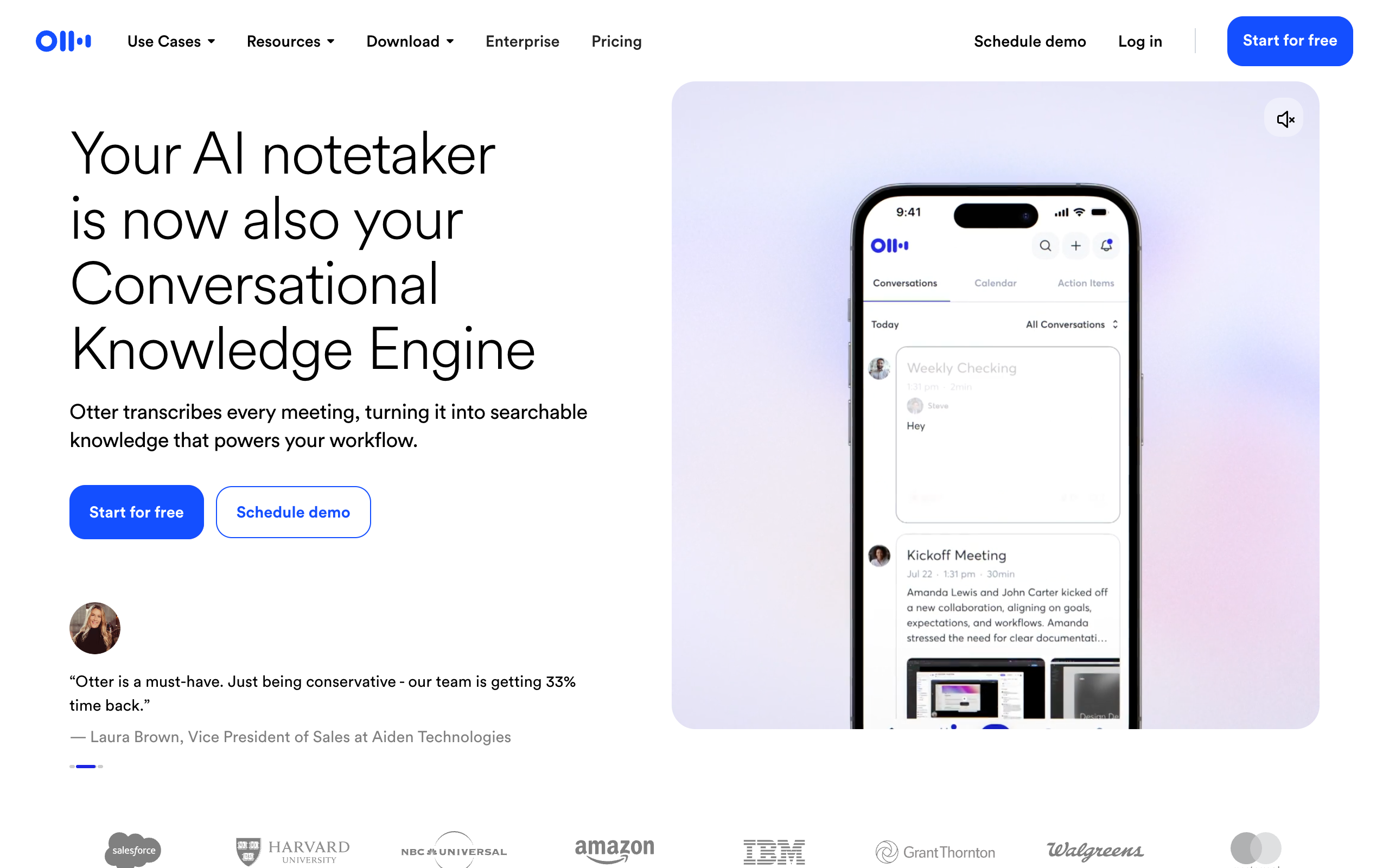
If meeting notes, not noise cancellation, are your main problem, Krisp isn’t the obvious first choice; Otter and Fireflies are built specifically around transcription and search across your meeting history.
| Tool | Price | Best for |
|---|---|---|
| Krisp Core | $8/user/mo (annual) | Noise cancellation first, notes as a bonus, bot-free capture |
| Otter.ai Pro | $8.33/user/mo (annual), 1,200 min/mo | Searchable transcript library, calendar sync, 90-min meeting cap |
| Otter.ai Business | $19.99/user/mo (annual) | Unlimited meetings and recordings for teams |
| Fireflies.ai Pro | $10/seat/mo (annual) | CRM push, searchable soundbites, credit-based AI summary add-ons |
| Fireflies.ai Business | $19/seat/mo (annual) | Advanced analytics, larger shared credit pool |
Notice Otter and Fireflies both cap or credit-limit AI-generated content on their cheaper tiers, Otter’s Pro plan stops at 90 minutes per meeting, Fireflies bills AI summaries against a shared credit pool that can run out. Krisp’s Core plan doesn’t cap note-taking the same way, but its transcript search and history features are noticeably thinner than either dedicated tool. Pick Krisp if noise is your primary pain and notes are a bonus. Pick Otter or Fireflies if searchable meeting history and CRM logging are the actual job to be done.
Krisp vs. NVIDIA Broadcast
NVIDIA Broadcast is free noise and room-echo removal, and for a specific slice of users it’s the better deal, but only if you already own the right hardware. It requires an NVIDIA GeForce RTX 2060 or higher, Windows only, and it doesn’t do meeting notes, accent conversion, or bot-free recording at all. If you’re a gamer or streamer who already has an RTX card and only cares about killing keyboard and fan noise on your own mic, NVIDIA Broadcast at $0 beats paying Krisp anything. If you’re on a Mac, a non-RTX Windows laptop, or you need the other-side noise cancellation Krisp offers, Broadcast simply isn’t in the running.
Who Should NOT Pay for Krisp
Skip Krisp if you exclusively meet inside Zoom, Teams, or Meet, never take calls through any other app or dialer, and don’t need the other-side noise cancellation, since the free built-in suppression already covers that case. Skip it if you’re a gamer with an RTX GPU whose only need is cleaning your own mic, NVIDIA Broadcast does that for free. Skip it if your real need is a searchable, permanent library of meeting transcripts across your whole team, that’s Otter’s or Fireflies’ job, not Krisp’s core strength. And skip the paid tiers entirely if you just need to test the noise cancellation once, the 7-day trial covers a single evaluation without a credit card.
If your team is deciding between a noise tool and a full meeting-assistant stack, our roundup of the best AI meeting assistants compares that broader category, and if Zoom specifically is your main platform, our guide to the best AI note-taker for Zoom goes deeper on the transcription side than this review does.
Who Should Actually Pay for Krisp
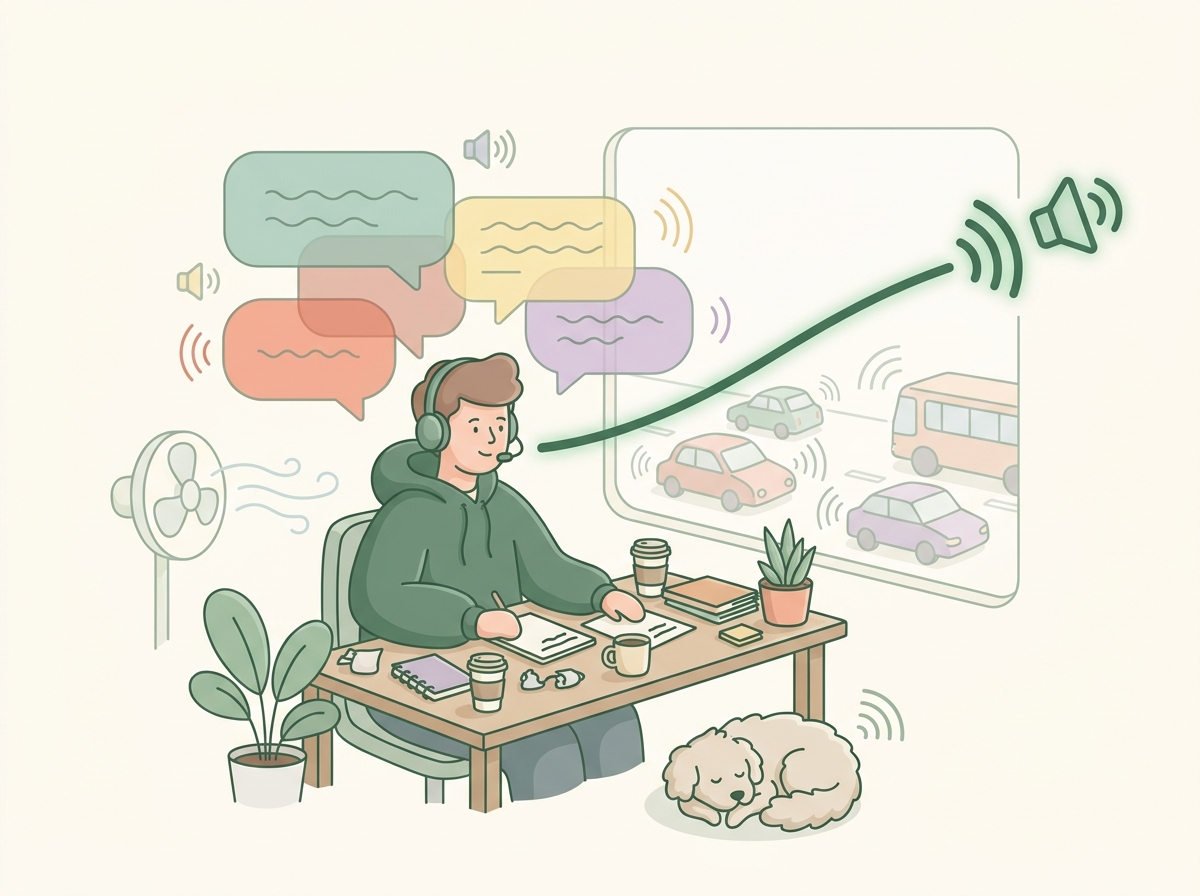
Pay for Krisp Core at $8 a month if you’re on a support desk, recruiting phone screens, or outbound sales calls where the incoming caller’s environment is out of your control, that’s the one problem the free built-ins were never designed to fix. Pay for it if your team uses a legacy softphone or call-center dialer with zero native noise handling. Step up to Advanced at $15 a month only once you’re actually hitting Core’s 1-hour-a-day accent conversion cap, most people never do.
FAQ
Does Krisp still have a free plan in 2026?
No. The current pricing page only shows a 7-day free trial with full features and no credit card required, then Core, Advanced, or Enterprise. Older reviews describing a permanent free tier with daily minute limits reflect a pricing model Krisp has since retired.
Does Krisp work with phone calls, not just video meetings?
Yes. Because it filters audio at the operating-system level rather than inside one app, it works with any softphone, dialer, or call-center system running on the same computer.
Can Krisp remove noise from the person calling me, not just my own mic?
Yes, this is Krisp’s bidirectional noise cancellation, and it’s the single feature none of Zoom’s, Teams’, or Meet’s built-in tools replicate.
Is Krisp better than Zoom’s built-in noise suppression?
Not automatically. Zoom’s High suppression setting is genuinely solid for common noise. Krisp wins specifically when you need it across multiple apps, or need the other-caller-side cleanup Zoom doesn’t offer.
Do I need an NVIDIA GPU to use Krisp?
No. That requirement applies to NVIDIA Broadcast, a separate free tool. Krisp runs on standard Mac and Windows hardware with no GPU requirement.
Does Krisp need a bot to join my meeting to take notes?
No. Krisp captures audio at the OS level, so it can generate meeting notes without a visible bot joining the call, unlike most dedicated note-taking tools.
The Bottom Line
Don’t buy Krisp to replace what Zoom, Teams, or Meet already give you for free, that money is wasted. Buy it the moment your actual problem is audio from other people’s environments you can’t control, or audio flowing through an app that will never build its own noise filter. At $8 a month on the annual Core plan, it’s cheap insurance for anyone taking inbound calls for a living. Everyone else should stick with what’s already built into their meeting app.
Disclosure: this article contains affiliate links. If you buy through them, we may earn a commission at no extra cost to you. Prices were checked in September 2026.
Quick answer: Otter.ai and HappyScribe get compared constantly, but they are not the same tool wearing different skins. Otter is built to sit inside a live Zoom, Google Meet, or Microsoft Teams call and hand you searchable notes in minutes, starting at $8.33 a month on the Pro annual plan. HappyScribe is built for after-the-fact, publishable transcripts and subtitles, with human proofreading priced from $1.90 to $2.00 a minute, starting at $8.50 a month on the Basic plan. Pick by output, not by brand recognition: internal meeting notes go to Otter, anything with your name on it going out the door goes to HappyScribe.
- Otter.ai tops out at 6 supported languages and has no paid human-review tier at any price, even Enterprise.
- HappyScribe supports 150+ languages for AI transcription and sells human proofreading separately, from $1.90 to $2.00 per minute.
- Neither company publishes a hard accuracy percentage on its own pricing page. Anyone who tells you “99% accurate” without a source is quoting marketing copy, not a benchmark.
- HappyScribe’s “annual” pricing is just 12 months prepaid at the same per-month rate. There is no annual discount, unlike Otter, Rev, or Descript.
- For anything with legal or clinical consequences, both tools need a human in the loop. Rev’s $1.99/minute human transcription is the more mature product for that specific job.
What Otter.ai and HappyScribe Are Actually Built to Do
Every “best transcription app” listicle throws Otter.ai and HappyScribe into the same 10 rows next to Rev and Sonix, as if picking one were a matter of taste. It is not. Otter grew out of the meeting-assistant category: it joins your call as a bot, transcribes live, and pushes an “Otter AI Chat” summary to your inbox before the call even ends. HappyScribe grew out of the subtitling and localization category: you upload a file, it queues, and the deliverable is a clean transcript or subtitle file meant to survive contact with an editor, a client, or a broadcast standard.
That single fact, live-in-the-room versus after-the-fact, explains almost every pricing and feature difference between them. Otter caps your recording length (90 minutes on Basic and Pro, 4 hours on Business) because it is metering a live session. HappyScribe caps your monthly AI minutes as a credit pool (120 minutes on Basic, 600 on Pro, 6,000 on Business) because it is metering a processing queue. Neither model is wrong, they are just optimized for a different Tuesday.
Otter.ai Pricing in September 2026: What You Actually Get
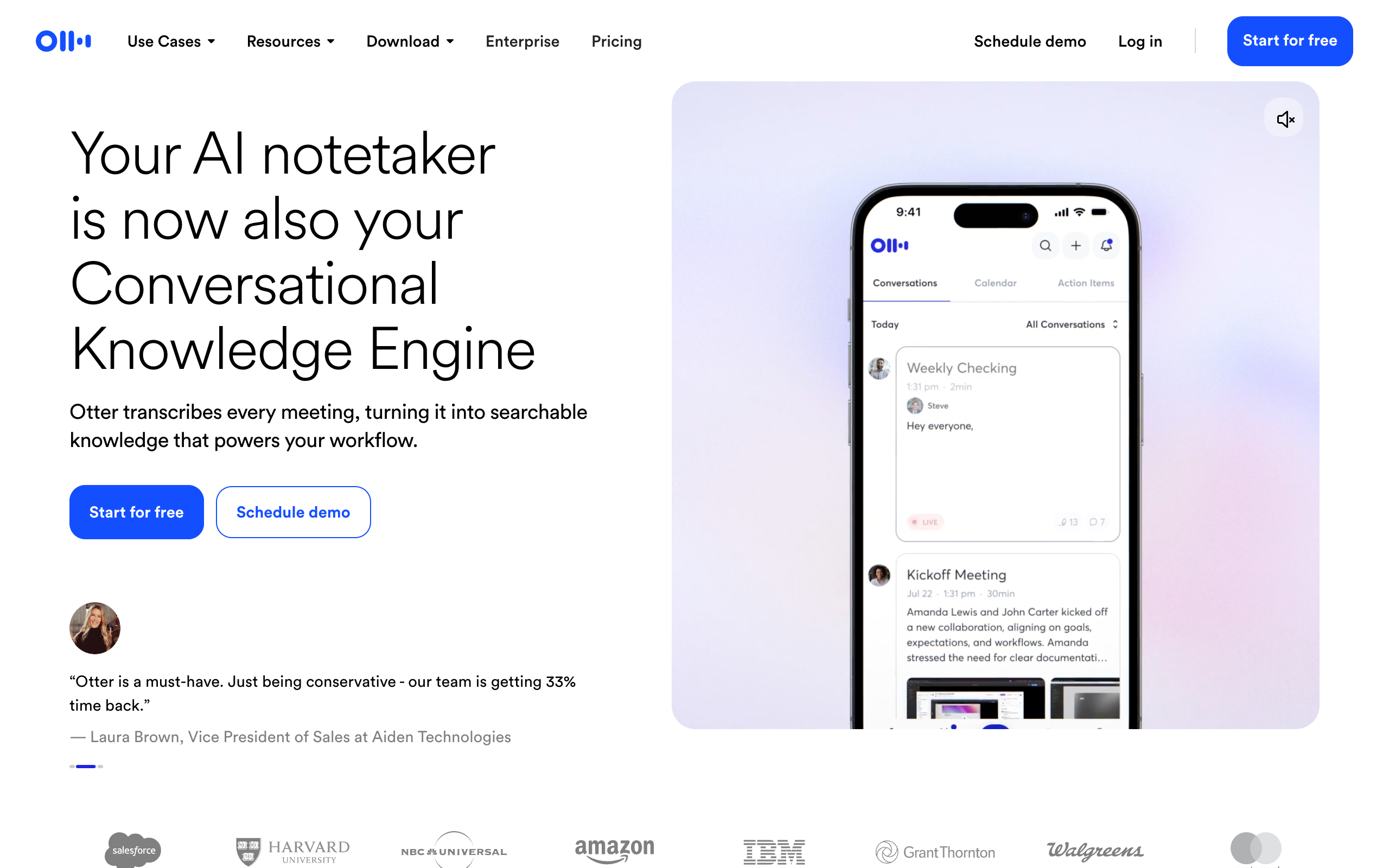
Otter.ai runs four tiers. The jump that matters most is Pro to Business, because Business is the only tier with unlimited minutes and the only one that exports to PDF, DOCX, and SRT instead of just plain text.
| Plan | Monthly | Annual (per month) | Minutes / month | Max meeting length | Export formats |
|---|---|---|---|---|---|
| Basic | $0 | $0 | 300 min | 90 min | mp3, txt |
| Pro | $16.99/user | $8.33/user | 1,200 min | 90 min | mp3, txt |
| Business | $30/user | $19.99/user | Unlimited | 4 hours | mp3, txt, pdf, docx, srt, bulk export |
| Enterprise | Custom, sold through a sales demo | ||||
All four tiers, Basic included, connect to Zoom, Microsoft Teams, and Google Meet for automatic joining and live captioning. Salesforce, HubSpot, and Zapier integrations unlock at Pro. What you will not find anywhere on Otter’s pricing page, at any tier, is a line item for human-reviewed transcripts. If you want a person to check Otter’s output, you export the text and pay someone else, Otter has no built-in path for that. Check Otter’s live pricing and start a Pro trial here before committing to annual billing, since the 51% annual discount only pays off if your team actually hits the 1,200-minute ceiling most months.
HappyScribe Pricing in September 2026: Credits, Seats, and Human Proofreading
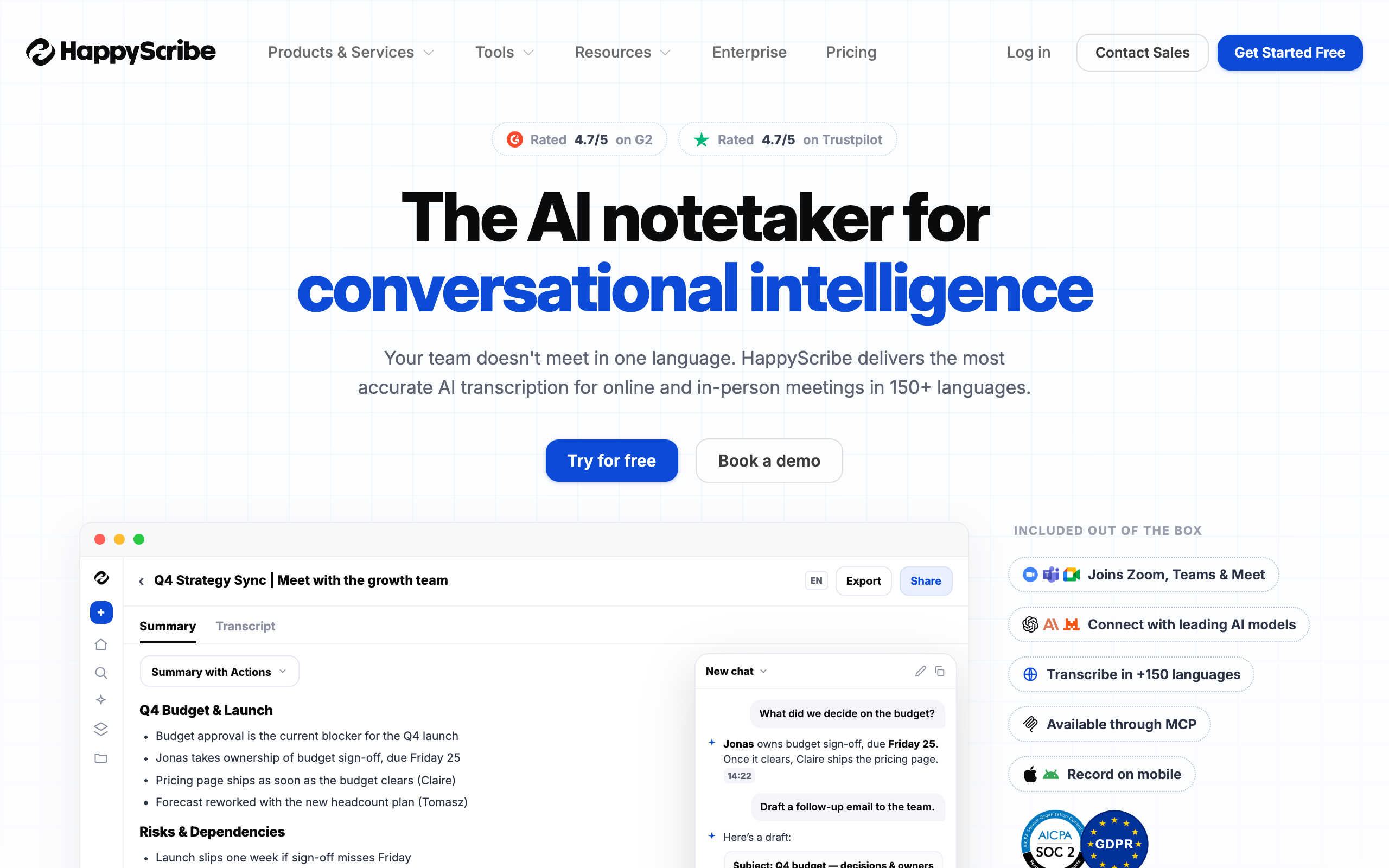
HappyScribe sells AI minutes as a monthly credit pool that resets, not a per-meeting cap. Run past your allotment and extra processing costs $0.20 per minute, billed automatically rather than blocking your export.
| Plan | Monthly | Annual (per year) | AI minutes / month | Max per recording | Human proofreading |
|---|---|---|---|---|---|
| Free | $0 | $0 | 10 min trial | 45 min | From $2.00/min |
| Basic | $8.50 | $102 | 120 min | 90 min | From $2.00/min |
| Pro | $19 | $228 | 600 min | Unlimited | From $2.00/min |
| Business | $59 | $708 | 6,000 min | Unlimited | From $1.90/min (5% discount) |
Notice the annual column: $8.50 times 12 is $102, $19 times 12 is $228, $59 times 12 is $708. There is no discount for paying yearly, you are only prepaying. That is a real gotcha worth knowing before you click “save with annual billing,” because on Otter and Rev that phrase means something, on HappyScribe it currently does not.
Extra seats cost $29/month or $19/month if the account itself is on annual billing. Export formats jump from four (TXT, SRT, PDF, DOCX) on Free and Basic to 15+ on Pro and Business, including VTT, STL, XML, FCPXML, EDL, and MP4 burned-in captions, the formats a video editor actually asks for. See HappyScribe’s current plans and credit pools here before you guess at how many minutes your monthly workload actually needs, most new users underestimate it in month one and overpay for add-on credits.
Accuracy and Human Review: The Part Both Pricing Pages Bury
Here is what nobody puts in the hero section: neither Otter nor HappyScribe states a specific accuracy percentage on its own pricing page as of this check. Otter’s marketing leans on “real-time” and “searchable,” not a number. HappyScribe’s page surfaces customer reviews mentioning “99% accuracy,” but that is a testimonial, not a benchmark HappyScribe stands behind in writing.
The difference that actually matters is whether a human ever touches the output. Otter: no. At any tier, including the custom Enterprise plan, there is no paid human-review SKU. HappyScribe: yes, from $1.90 to $2.00 per minute, meaning a 30-minute interview costs $57 to $60 to get professionally proofread on top of your subscription. Rev undercuts that at $1.99 per minute flat with a 12-hour turnaround and a published 99%+ accuracy claim backed by the review itself, which is why Rev shows up later in this article as the better pure human-transcription option when HappyScribe’s queue or file-format ecosystem is not the deciding factor.
Which One Actually Fits Your Job

Internal meetings and standups
Otter wins outright. It joins the call, gives your team a live transcript scrolling in real time, and drops a summary into Slack or email before anyone has closed their laptop. HappyScribe was never built to sit inside a live call the way Otter is, you would be uploading a recording after the fact, which defeats the point of a standup.
Research interviews you plan to quote or code
Split decision. If speed and searchability matter more than perfect verbatim accuracy, Otter’s live transcript with speaker labels is enough for a first pass. If you are publishing quotes in a report, a thesis, or a peer-reviewed paper, pay HappyScribe’s human proofreading fee, or Rev’s $1.99/minute, and get it checked. A misquoted informant is not a bug you can patch after publication.
Subtitles for a video you’re publishing
HappyScribe, not close. Its export list (SRT, VTT, FCPXML, EDL) matches what YouTube, Premiere, and Final Cut actually import, and its 150+ language coverage dwarfs Otter’s six. This is the single clearest case where the two tools are not even competing for the same job.
Podcasts you’re turning into show notes and clips
HappyScribe again, mostly because of format range, but Descript deserves a look here too since it combines transcription with word-level audio editing (cut a filler word from the transcript, it cuts the audio) starting at $16/month on the Hobbyist annual plan. Neither Otter nor HappyScribe edits audio by deleting text.
Legal depositions, medical intake, or anything YMYL
Neither tool alone. This is where you pay for Rev’s human transcription at $1.99/minute with a published 99%+ accuracy figure, or Rev’s dedicated legal-formatted transcript service at $2.25 to $2.50 per page produced by legal-trained transcribers. An AI-only transcript, from any vendor, is not defensible as an official record, and no vendor in this article claims otherwise in writing.
How Otter and HappyScribe Stack Up Against Rev, Descript, Fireflies, and Sonix
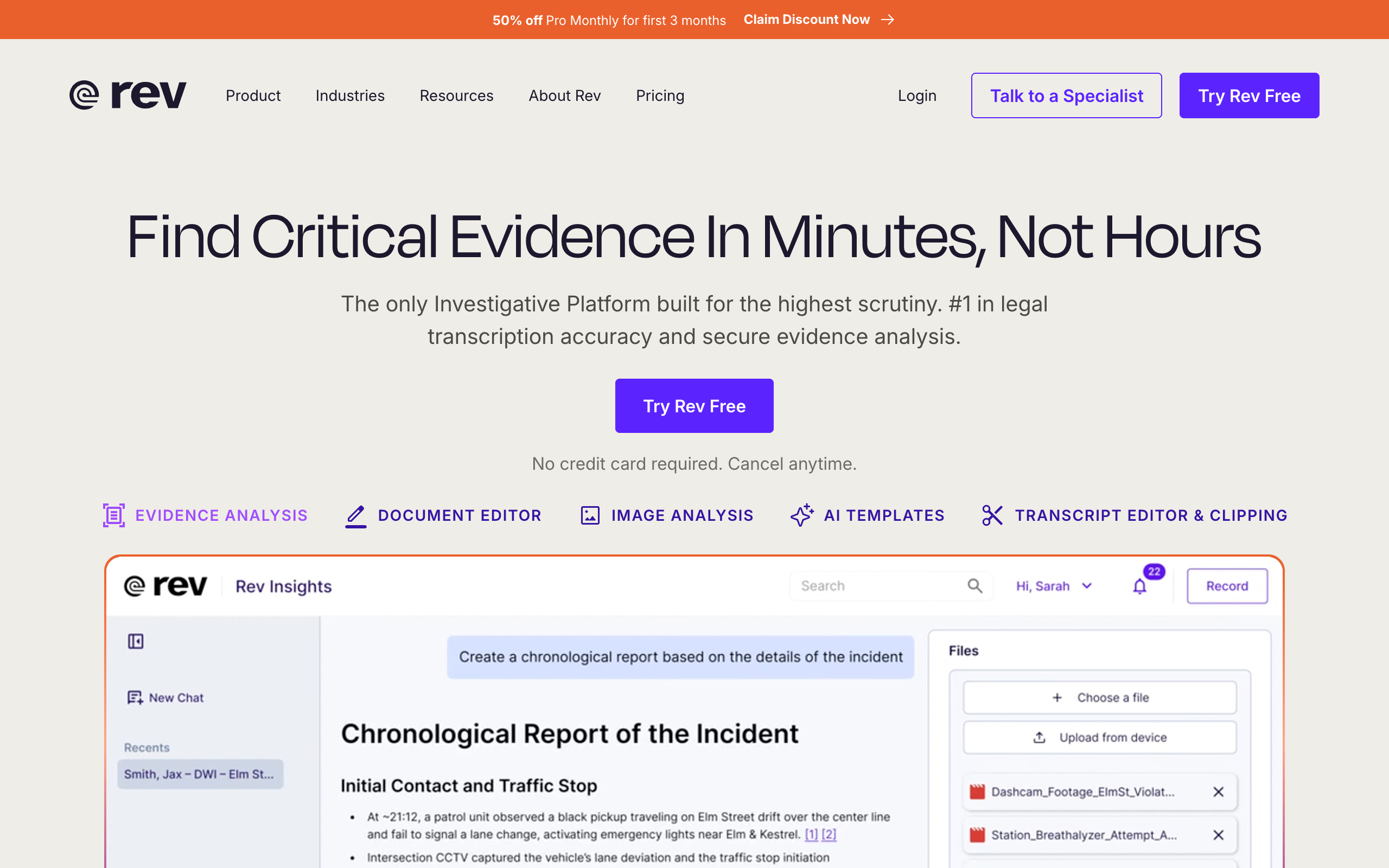
Six tools, one table. This is the comparison most listicles skip because it makes the “just pick the cheapest” advice look bad, cheapest per month is not the same as cheapest per finished, trustworthy minute.
| Tool | Entry paid plan | Minutes included | Languages | Human review |
|---|---|---|---|---|
| Otter.ai Pro | $16.99/mo ($8.33 annual) | 1,200 min/mo | 6 | Not offered |
| HappyScribe Basic | $8.50/mo | 120 min AI credits/mo | 150+ (transcription) | From $2.00/min |
| Rev Essentials | $29.99/mo ($25.49 annual) | 5,000 min/seat/mo | 2 (37+ on Pro) | $1.99/min |
| Descript Hobbyist | $24/mo ($16 annual) | 600 min/mo | 25 | Not offered |
| Fireflies Pro | $18/mo ($10 annual) | Unlimited, 8,000 min storage | 100+ | Not offered |
| Sonix Core | $25/mo ($22.92 annual) | 5 hrs (300 min)/mo | 54+ | Not offered |
Look at that last column. Out of six well-known transcription tools, only two, Rev and HappyScribe, sell human review as a product at all. Fireflies, Descript, Sonix, and Otter are all betting entirely on the AI engine underneath, which for a meeting recap is fine, and for a subtitle file going to a broadcaster’s compliance department is a real gap you would be filling yourself with a freelance editor anyway.
When the Machine Transcript Is Enough, and When It Legally Isn’t
Machine-only is fine when the transcript is a working document: your own meeting notes, a rough draft of an interview you’ll re-listen to for the exact quotes, a podcast outline before editing. The cost of an error is your own time, and you’ll catch it.
Human review stops being optional when the transcript becomes evidence, a public record, or a compliance artifact: court depositions, medical intake forms, closed captions required for ADA compliance, or anything you’re publishing under your organization’s name where a misheard word becomes a correction notice. Rev states its human captions are FCC and ADA compliant; neither Otter nor Descript nor Fireflies nor Sonix makes that compliance claim for their AI-only output, because none of them are claiming to be a compliance product.
Who Should Not Use Otter.ai or HappyScribe
- Don’t use Otter if your content needs to publish in anything beyond English, Spanish, French, German, Japanese, or Chinese. Six languages is a hard wall, not a soft limit you can pay past.
- Don’t use HappyScribe’s Free or Basic tier if your calls regularly run past 90 minutes. You’ll hit the per-recording cap mid-meeting and have to split the file. Pro removes that cap at $19/month.
- Don’t use either tool if you need a legally defensible transcript today. Budget for Rev’s $1.99/minute human service or a court-certified stenographer instead, full stop.
- Don’t use Otter’s free Basic tier as a business’s only transcription tool. 300 minutes is roughly five hour-long meetings a month, most teams blow through that by week two.
Frequently Asked Questions
Does Otter.ai offer any human-reviewed transcript option?
No. As of this pricing check, Otter has no paid human-proofreading tier at Basic, Pro, Business, or Enterprise. If you need a person to verify accuracy, you export Otter’s text and send it to a separate service like Rev or HappyScribe.
Is HappyScribe’s automatic transcription good enough for subtitles without human review?
For internal use or a rough cut, yes. For anything published, HappyScribe itself sells human proofreading starting at $1.90 to $2.00 per minute precisely because its own AI output is not positioned as publish-ready on its own.
Which is cheaper for a weekly one-hour meeting, Otter or HappyScribe?
Otter Pro at $8.33/month (annual) covers about 20 hour-long meetings before you hit the 1,200-minute ceiling, more than enough for one weekly call. HappyScribe Basic at $8.50/month gives you 120 AI minutes, only two hour-long meetings, so for a live weekly call Otter is the better fit by minutes included, not just sticker price.
Can I use an Otter.ai or HappyScribe transcript in a legal deposition or medical record?
Not on its own. Neither company markets its AI transcript as a certified legal or medical record. For that, use Rev’s human transcription service or a court-certified/medically-trained transcriptionist, and budget $1.99 to $2.50 per minute or page depending on the format.
Does HappyScribe integrate with Zoom, Google Meet, and Microsoft Teams the same way Otter does?
Both connect to all three platforms, but differently. Otter joins the live call as a bot and transcribes in real time. HappyScribe’s integration is import-based, you pull a recording in after the call ends rather than transcribing live.
What does human-proofread captioning actually cost for a 10-minute video?
On HappyScribe, $19 to $20 (at $1.90 to $2.00/min) on top of your subscription. On Rev, $19.90 (at $1.99/min flat) with no subscription required at all if you only need occasional human transcription. For occasional use, Rev’s pay-as-you-go human service can beat maintaining a HappyScribe subscription just for the proofreading add-on.
If you’re deciding purely on what a hundred-person team uses for daily standups, our full Otter.ai review goes deeper into the meeting-assistant side alone. And if none of these six quite fit your workflow, the wider field is covered in our best AI transcription tools roundup. Our own take: for anything staying inside your team, start with Otter’s Pro plan, for anything leaving your building with your name on it, HappyScribe plus its human proofreading add-on is the safer $20 to spend.
Notion AI as a Note Taker: Honest 2026 Review
By Nam Nguyen, founder of saas.com.ai, where I curate and track AI tools by real traffic and growth data. Published July 11, 2026.
Key takeaways
- Notion AI Meeting Notes is bot-free: it records your device’s own audio, so nothing shows up in the participant list.
- It only unlocks on the Business plan ($20/user/month annual, $24 monthly) or Enterprise. There is no cheaper path anymore.
- Transcription covers 16 languages but degrades fast on accents and non-English audio (Notion, 2026).
- No speaker labels, no timestamps, no calendar auto-join. You have to remember to hit record.
- Worth it only if your team already lives in Notion. Otherwise Granola or Otter capture better for less.
Notion AI works as a note taker, but a convenience one, not a best-in-class one. Its AI Meeting Notes feature captures your device audio, transcribes in real time, and drops a summary with action items onto a native Notion page. The catch: it requires the $20/user/month Business plan, and it misses speaker labels, timestamps, and auto-join that dedicated tools ship by default.
I have run Notion as my second brain for years, so I wanted this to be the note taker that finally closed the loop. After putting it against Granola and Otter on real calls, my honest read is narrower than the marketing: it is a fine capture tool if the note has to land inside Notion anyway. If that is not a hard requirement, you are paying more for less.
What is Notion AI Meeting Notes, and how does it capture audio?
Notion AI Meeting Notes is a built-in feature that records a meeting through your computer’s own audio, transcribes it, and generates a summary with action items on a Notion page. It captures system audio, meaning both your microphone and your speakers, so it hears everyone on the call without joining as a guest.
That last part matters more than Notion says out loud. It is bot-free. There is no “Notion Notetaker has joined” line in the Zoom roster, no awkward moment where a client asks who the extra attendee is. This is the same device-capture approach Granola pioneered, and it is the single most modern thing about the feature.
Here is the workflow in practice:
- Open a new page in Notion, start AI Meeting Notes, and let it listen.
- Type sparse notes yourself while the meeting runs, or type nothing at all.
- When the call ends, Notion generates a transcript, a summary, and an action-item list on the same page.
The output lives natively in your workspace from the first second. No copy-paste, no “send to Notion” integration, no second app. For a Notion-native team, that is the whole pitch: the note is already in the right database, ready to be linked, tagged, and rolled into a project.
(One aside worth flagging: because it grabs system audio and does not announce itself, the same consent etiquette applies as with Granola. Bot-free is convenient, but you still owe people a heads-up that the call is being recorded.)
Which Notion plan do you need for AI note taking?
AI Meeting Notes requires the Business plan at minimum, priced at $20 per user per month billed annually, or $24 monthly (Notion). It is also included in Enterprise. The Free and Plus tiers do not get it.
This is where the honest review turns sharp, so let me lay out the money plainly.
| Plan | Price (annual) | AI note taking? | What you actually get |
|---|---|---|---|
| Free | $0 | No | Docs, wikis, basic Notion |
| Plus | $10/user/mo | No | More blocks, small teams |
| Business | $20/user/mo | Yes | Full AI suite: Notion Agent, AI Meeting Notes, Enterprise Search |
| Enterprise | Custom | Yes | Business plus SSO, admin controls |
Notice the jump. To get the note taker, you cannot just add AI to a cheap plan. You buy the whole Business tier. And here is the part that changed the calculus: Notion retired the standalone AI add-on for new Free and Plus users and folded the full AI suite into Business and Enterprise (Notion AI pricing analysis, 2026). Before that, you could bolt AI onto any plan for roughly $8 to $10 a seat. That door is closed for new customers.
Read that as a business decision, not a feature launch. The note taker is the bait that makes the $20 tier feel loaded. Notion did not build a better meeting assistant and price it fairly; it moved AI upmarket and used Meeting Notes as one of the reasons to climb.
How good is the transcription quality, really?
Notion AI Meeting Notes transcribes across 16 languages, including English, French, Japanese, German, Spanish, and Portuguese (Notion, 2026). In clean English audio with clear speakers, it is genuinely good enough for summaries and action items.
Outside those conditions, it wobbles. Independent testers found German transcription noticeably below tools optimized for that market, and accuracy drops on strong accents or heavy technical vocabulary (Sally, 2026). Noisy audio makes it worse. This is a summariser first and a transcriber second, and it shows.
The bigger gaps are structural, and the feature is still labeled beta (Notion, 2026):
- No speaker identification. The transcript will not tell you who said what. For a two-person call you can infer it. For a six-person planning session, good luck reconstructing who owns which action item.
- No timestamps. You cannot jump to the 14-minute mark where the budget got decided.
- No auto-join. It will not read your calendar and start itself. You hit record, or there is no note. Miss the first five minutes and they are gone.
- No video or screen capture, and no native CRM integrations.
Honestly, the missing speaker labels are the dealbreaker for client work. A meeting summary that cannot attribute commitments is a diary, not a record. tl;dv’s own review, from a self-described long-time Notion fan, landed on the same verdict: clever and lightweight, but not a serious meeting assistant for client calls or team handoffs (tl;dv, 2026).
Notion AI vs Granola vs Otter: which note taker wins?
For raw meeting capture, Granola and Otter both beat Notion AI. Notion only wins on one axis: the note already lives in Notion. Here is the side-by-side on the things that decide a purchase.
| Notion AI | Granola | Otter.ai | |
|---|---|---|---|
| Capture method | Device audio, bot-free | Device audio, bot-free | Bot joins the call (visible) |
| Free plan | None (Business only) | Yes, limited history | Yes, 300 min/month |
| Entry paid price | $20/user/mo (Business) | $14/user/mo | $16.99/user/mo (Pro) |
| Speaker labels | No | Yes | Yes |
| Auto-join from calendar | No | No | Yes |
| Notes live in Notion | Native | Via integration | Via integration |
| Verdict | Convenience play | Best bot-free capture | Best free minutes |
Sources: Granola pricing, Otter pricing 2026.
Sit with the pricing for a second. Notion is the most expensive entry point of the three and the least capable at the actual job of taking notes. Granola starts free and, at $14 a seat, gives you unlimited history plus speaker labels and integrations into Notion, HubSpot, Slack, and Zapier. Otter’s free tier alone hands you 300 minutes a month.
So why would anyone pay more for less? Because the note landing inside Notion, with zero export step, is worth real money to a team whose entire operating system is Notion. Granola can push a note into Notion through an integration, but that is a sync, not a home. Notion AI’s note is born in the right place. That is the honest trade, and for some teams it is a fair one.
If you are still deciding between the pure-play tools, that comparison deserves its own page. See Granola vs Notion for the head-to-head, and the best AI note takers of 2026 for the full field including Fireflies and Fathom.
Who should actually use Notion AI as a note taker?
Use Notion AI Meeting Notes if, and only if, your team already pays for Business and runs its knowledge base in Notion. Under that condition, the marginal cost of the note taker is zero, the friction is zero, and the note lands exactly where your projects already live. That is a genuinely good deal.
Everyone else should look elsewhere. If you are a solo consultant, the old $8 add-on that would have covered you is gone, and $20 a month for a note taker with no speaker labels is hard to defend. If you run client calls that need attributed follow-ups, the missing speaker ID alone rules it out. If you work heavily in a non-English language, the accuracy gap will cost you edits.
Let me put a number on the decision. If Notion is already a line item you pay for, adding note taking costs you $0 extra. If it is not, you are looking at $20 a seat to get a capture tool that Granola beats at $14 and Otter matches on a free plan. The math only works from inside the ecosystem.
The insider read: this is a retention move, not a note taker
Here is what most reviews miss. Notion AI Meeting Notes is not really competing with Granola and Otter for the meeting-notes market. It is competing for your Notion subscription.
Think about what happened. Notion killed the cheap standalone AI add-on, then bundled a stack of AI features, including the note taker, into the $20 Business tier (Notion AI pricing analysis, 2026). Meeting Notes is one of several reasons to justify the climb from Plus to Business. It does not need to be the best note taker on the market. It needs to be good enough that you do not go shopping for a separate one, which would give a rival a foothold in your workflow.
That framing explains every design choice. Why no auto-join, no speaker labels, no CRM? Because those are the features a dedicated tool sells on, and Notion is not trying to win that fight. It is trying to make sure you never leave. The note taker is a moat feature, not a category killer.
Do not read that as cynicism from me. It is a rational strategy, and for locked-in Notion teams it produces a real benefit. But you should buy it knowing what it is. You are not buying the best way to capture a meeting. You are buying one more reason to keep everything in Notion, and paying a premium for the convenience.
Frequently asked questions
Does Notion AI record meetings without a bot joining?
Yes. Notion AI Meeting Notes captures your device’s system audio directly, so it does not join the call as a visible participant. Nothing appears in the meeting roster, which is the same bot-free approach Granola uses. You still should tell participants they are being recorded.
What plan do I need for Notion AI note taking?
You need the Business plan, priced at $20 per user per month billed annually or $24 monthly, or Enterprise (Notion, 2026). The Free and Plus tiers do not include AI Meeting Notes, and the old standalone AI add-on is no longer sold to new Free and Plus users.
Is Notion AI good enough for client meetings?
For most client work, no. Notion AI Meeting Notes has no speaker identification and no timestamps, so it cannot reliably attribute who committed to what (tl;dv, 2026). For internal notes where attribution matters less, it is fine. For accountable client follow-ups, a tool with speaker labels serves you better.
Notion AI vs Granola: which is better for notes?
Granola is the stronger note taker on capture, with speaker labels, unlimited history at $14 a month, and integrations. Notion AI wins only if your workspace is already Notion, since the note is created natively with no export step. If you are not locked into Notion, Granola gives you more for less.
How many languages does Notion AI Meeting Notes support?
It supports 16 languages, including English, French, Japanese, German, Spanish, and Portuguese (Notion, 2026). Quality is strongest in clear English audio and drops on non-English speech, strong accents, or noisy recordings.
The bottom line
Notion AI as a note taker is a good answer to a narrow question: how do I capture a meeting without leaving Notion? If that is your question, the $20 Business seat you likely already pay for makes this a no-brainer, and the bot-free capture is genuinely pleasant to use.
If your question is broader, which tool takes the best notes, Notion is not it, and the pricing gives it away. You pay the most and get no speaker labels, no timestamps, and no auto-join. Personally, I keep Notion for the notes that must live beside my projects, and I reach for Granola the moment attribution or history matters. Buy Notion AI for the convenience. Just do not mistake it for the best note taker in the room.
About the author. Nam Nguyen is the founder of saas.com.ai, an AI-tools directory that curates and tracks software by real traffic and growth data to help readers pick the right tool for any task. He tests meeting and productivity tools on live work rather than from spec sheets.
Sources
- Notion, “Pricing,” notion.com/pricing (2026)
- Notion, “AI Meeting Notes (beta) Help Center,” notion.com/help/ai-meeting-notes (2026)
- Notion, “AI Meeting Notes product page,” notion.com/product/ai-meeting-notes (2026)
- Sally, “Notion AI Meeting Notes Review 2026,” sally.io (2026)
- tl;dv, “Notion AI Meeting Notes Review: My Honest Take,” tldv.io (2026)
- Fello AI, “Notion AI Pricing 2026: Plans, Cost & Add-On Status,” felloai.com (2026)
- Granola, “Meeting note tool pricing: Granola vs Fireflies vs Fathom vs Otter,” granola.ai (2026)
- Speakwise, “Otter.ai vs Granola: Honest Comparison 2026,” speakwiseapp.com (2026)
Best AI Note Taker for Microsoft Teams in 2026
By Nam Nguyen, founder of saas.com.ai, where I curate and track AI tools by real traffic and growth data. · Published July 11, 2026 · Last updated July 11, 2026
The best AI note taker for Microsoft Teams in 2026 depends on one thing most reviews skip: whether your IT admin allows a third-party bot into the meeting at all. If bots are blocked, Microsoft 365 Copilot (native, no bot) wins. If you have freedom, Granola (bot-free) and Fireflies (bot, generous free tier) are the strongest picks. Everything else is a trade-off between price, free minutes, and how visible the note taker is to everyone else on the call.
Key takeaways
- Native Microsoft Teams AI notes (intelligent recap) need either Teams Premium (~10/user/month)orMicrosoft365Copilot(30/user/month).
- Third-party bots (Otter, Fireflies, Fathom, tl;dv) join as a guest and show up in the participant list.
- Microsoft is restricting external meeting bots at the tenant level starting Q3 2026, which changes the whole decision.
- Granola is bot-free: it captures system audio locally, so nothing joins the meeting and nothing appears in the roster.
- Free tiers range from 300 minutes/month (Otter) to unlimited transcripts (tl;dv, Fathom), but the real limits hide in storage and AI-summary caps.
The 6 best AI note takers for Microsoft Teams, compared
Here is the shortlist first, so you can pull the one number you care about and move on.
| Tool | How it works with Teams | License / cost (2026) | Free tier | Best for |
|---|---|---|---|---|
| Microsoft 365 Copilot | Native, no bot, real-time in-meeting Copilot | $30/user/mo add-on (Business promo $18 through Sep 30, 2026) + eligible M365 base | None (paid add-on) | Enterprises on M365 that block external bots |
| Teams Premium (recap only) | Native, no bot, intelligent recap after the call | ~$10/user/mo add-on + eligible M365 base | None (paid add-on) | Cheapest native AI notes without full Copilot |
| Granola | Bot-free, captures system audio on your device | Individual $18/mo; Business $14/user/mo; Enterprise $35+ | 25 meetings lifetime (trial) | Dodging IT bot bans while staying private |
| Fireflies.ai | Bot joins the meeting, native Teams | Pro from $10/user/mo; Business from $19/user/mo | 800 min/mo, 3-month storage | Sales teams that push notes to a CRM |
| Otter.ai | Otter Assistant bot joins the meeting | Pro $16.99/mo; Business $30/user/mo | 300 min/mo | Solo users who want live transcript and chat |
| tl;dv | Bot records Teams, Zoom, Meet | Pro $18/user/mo; Business $59/user/mo | Unlimited recordings (auto-delete after 3 months) | Free multilingual recording at volume |
| Fathom | Bot; Teams support on paid plans only | $24/user/mo (adds Teams + Meet) | Unlimited on Zoom; AI summaries capped at 5/mo | Zoom-first teams testing the waters |
(That is technically seven rows for six tools, because “Microsoft native” is really two price points: recap-only Teams Premium, and the full Copilot experience. Most buyers confuse the two and overpay.)
See how every tool in this list ranks by real traffic and growth data.
How do AI note takers work inside Microsoft Teams?
AI note takers for Teams work in one of three ways, and the method decides everything else: cost, privacy, and whether IT can shut it down.
Native (no bot). Microsoft’s own intelligent recap and Copilot generate notes from inside the Teams service. There is no guest in the roster, no join announcement, nothing leaves your Microsoft 365 tenant. This is the only method Microsoft itself controls end to end, and it is the only one that survives a strict security review without a fight.
Bot (external guest). Otter, Fireflies, tl;dv, and Fathom send a bot account into the call. It appears as a participant, records the audio, and ships the transcript to the vendor’s cloud to summarize. Every attendee sees “Otter Notetaker” in the list, and the meeting data leaves your tenant. That last part is exactly what security teams object to.
Bot-free (local capture). Granola takes a third path: it runs as a desktop app and captures the system audio playing on your own machine, then sends only that audio for processing. No bot joins, so the roster stays clean and there is no recording banner to change how people talk. Granola works with any platform that produces sound, Teams included, according to Granola’s own documentation.
One catch worth saying out loud: bot-free does not mean invisible to IT. Granola still needs a desktop install, and a locked-down enterprise laptop can block that too. It sidesteps the meeting bot policy, not the app install policy.
Will your IT admin even let a third-party bot into the meeting?
This is the question that should drive your choice, and almost no listicle mentions it. Starting in Q3 2026, Microsoft is tightening restrictions on third-party bot accounts joining Teams meetings, with new lobby warnings, admin block lists, and tenant-level enforcement, according to UC Today.
The control lives in the Teams meeting policy under “Meeting join and lobby,” in a setting called Manage external bots and their access to meetings, per CallScrib’s admin guide. When an admin sets it to block, detected external bots never even reach the lobby. Otter, Fireflies, Fathom, and Read.ai are named directly in the crackdown coverage because they all join as guests.
Here is the nuance that separates informed buyers from the rest: tools that read the transcript through the Microsoft Graph API instead of sending a bot are not affected, according to Practical365. The defining question is not “does it take notes,” it is “does it push a bot account into my meeting, or does it read the transcript Microsoft already generated?”
So before you fall in love with any tool’s feature list, ask your Teams admin one thing: is the external-bot policy set to block? In a lot of enterprises the answer is already yes, and that single setting eliminates four of the six tools on this page. (If you are the admin, you already know which way the wind is blowing on this. If you are an employee, do not find out the hard way in front of a client.)
Microsoft 365 Copilot in Teams: is the native option worth the price?
Microsoft 365 Copilot is the most powerful Teams note taker and the most expensive, and for enterprises that block bots it is often the only option left standing. It runs natively, adds a real-time Copilot pane you can query during the call, and produces customizable recap templates after it.
The pricing is where people get burned. Microsoft 365 Copilot is a $30/user/month add-on that sits on top of an eligible base license like E3, E5, or Business Premium, according to Microsoft’s pricing page. Stack it on E3 and you are near $66/user/month all in. Microsoft 365 Copilot Business is running a promo at $18/user/month through September 30, 2026, before returning to a $21 standard rate, which softens the blow for smaller teams.
You do not always need the full Copilot license, though, and this is the money-saving detail Microsoft is not eager to headline. Basic intelligent recap, the AI meeting notes, speaker timeline, and auto-generated chapters, is available with Teams Premium at roughly $10/user/month, per Microsoft’s Teams Premium page. What Teams Premium does not give you is the live in-meeting Copilot and custom summary templates, which are Copilot-only, according to Microsoft Learn.
My take: if you just want reliable AI notes after every call and you are already on Microsoft 365, buy Teams Premium first and see if the recap alone is enough. Most teams never touch the live-Copilot features they paid triple for.
Not on Microsoft 365 yet, or want the bot-free route?
Otter.ai: still the default, but is the bot a liability?
Otter.ai is the name most people reach for first, and in 2026 that familiarity is starting to work against it in Teams-heavy shops. The Otter Assistant bot joins the meeting, transcribes in real time, and gives you Otter AI Chat to ask questions afterward.
The free tier is 300 minutes/month, the tightest of the well-known tools, with Pro at $16.99/month and Business at $30/user/month. That 300-minute cap sounds fine until you realize a few hour-long standups a week eats it before mid-month.
The bigger issue is not price, it is the bot itself. Otter is named in the Q3 2026 external-bot crackdown, so in a locked-down tenant the Otter Assistant may never make it past the lobby. Otter is a fine pick for a freelancer or a small team on an open tenant. In a regulated enterprise, treat it as a coin flip until you confirm the bot policy.
Compare pricing and features on the Otter.ai listing at saas.com.ai.
Fireflies.ai: best for sales teams on Teams?
Fireflies.ai is the strongest bot-based pick for Teams when the notes need to end up somewhere other than a doc, usually a CRM. It joins natively, transcribes, creates searchable soundbites, and pushes structured data into tools like Salesforce and HubSpot.
The free tier is genuinely useful at 800 minutes/month with 3-month storage, and paid plans start at $10/user/month for Pro and $19/user/month for Business. That 800-minute free allowance is more than double Otter’s, which is why a lot of small sales teams quietly run Fireflies for free far longer than they should be able to.
The catch is the same one that hangs over every bot: Fireflies is on the external-bot restriction list, so its future in strict Teams tenants depends on admin policy, not on how good the CRM sync is. If your organization is not locking bots down, Fireflies is the one I would test first for revenue teams.
See the full breakdown on the Fireflies.ai listing at saas.com.ai.
Fathom: why is Teams support locked behind the paid plan?
Fathom has the most generous-looking free tier and the biggest asterisk for Teams users. Its free plan gives unlimited recordings and transcripts, but that generosity is built around Zoom. Teams and Google Meet support arrive only on the paid plan at $24/user/month, and even the free AI summaries are capped at five meetings per month.
So the honest read is this: if your meetings live in Teams, Fathom is not a free tool, it is a $24/user/month tool. The unlimited-everything headline you saw is a Zoom story. For a Zoom-first team dipping a toe into AI notes, Fathom is excellent. For a Teams shop, the value proposition shrinks fast once you cross the paywall you did not know was there.
Details are on the Fathom listing at saas.com.ai.
tl;dv: the most generous free tier for Teams?
tl;dv wins the free-tier argument outright if raw volume is what you need. It records Teams, Zoom, and Meet, and the free plan covers unlimited recordings and transcripts in 30-plus languages. Paid plans run $18/user/month for Pro and $59/user/month for Business.
The trade-off is buried in retention: on the free plan, recordings auto-delete after three months. That is fine for disposable standups and brutal if you needed the recording of a kickoff call from last quarter. tl;dv is the tool I would hand to someone who records constantly, works across languages, and does not need a permanent archive.
Like the others here, tl;dv drives a bot into the meeting, so the Q3 2026 policy applies to it too.
Granola: the bot-free answer to the Teams crackdown?
Granola is the tool built for exactly the moment Microsoft is creating. It is bot-free: instead of sending a guest into the call, it captures the audio playing on your own device, so nothing shows up in the participant list and no recording banner changes the tone of the room. It also works as a hybrid notepad, you jot sparse notes during the call, and Granola uses the transcript to expand them into a full summary you can then chat with.
Granola works with Teams, Zoom, Meet, Slack Huddles, and WebEx, on Mac and Windows desktop, per Granola’s pricing page. Pricing: the free tier is 25 meetings lifetime, effectively a trial, with Individual at $18/month, Business at $14/user/month, and Enterprise from $35/user/month with SSO.
Two limits people miss. First, there is no web or mobile app, you need the desktop client running on the machine where the audio plays, so a phone call on the go is out. Second, the 25-meeting free cap is a lifetime number, not monthly, so you evaluate fast or you pay.
Still, if your Teams tenant blocks bots and you do not want the full Copilot bill, Granola is the cleanest path I have found. Read the deeper writeup in our Granola AI review.
How do you turn on AI notes in Teams without a third-party tool?
You can get native Microsoft Teams AI notes in five steps, no external app required, if your admin has assigned the right license.
- Confirm your license. Ask IT whether you have Teams Premium or Microsoft 365 Copilot assigned. Without one, the intelligent recap tab stays empty.
- Turn on recording and transcription when the meeting starts. Intelligent recap is built from the transcript, so no transcript means no AI notes.
- Open the Copilot pane during the call (Copilot license only) to ask live questions like “what did we decide about the budget?”
- Open the Recap tab after the meeting from your Teams calendar event to see AI notes, the speaker timeline, and auto-generated chapters.
- Use custom summary templates only if you hold the Copilot license, since Teams Premium does not include them.
This native route is the one that never trips the external-bot policy, because there is no external bot. That is the whole point.
Verdict: which AI note taker for Microsoft Teams wins in 2026?
There is no single winner, but there is a clear decision tree, and it starts with your admin, not your feature wishlist.
If your enterprise blocks external bots, stop comparing free tiers. Buy Teams Premium for recap-only needs, or Microsoft 365 Copilot if you want live in-meeting AI, and move on. Anything with a bot is a support ticket waiting to happen.
If you have freedom to install what you want, I would run Granola for its bot-free privacy and clean roster, or Fireflies if the notes have to land in a CRM and 800 free minutes a month is enough to prove the value. Use tl;dv if you record constantly and multilingually, and skip Fathom for Teams unless you are ready to pay $24/user/month for a tool whose free story is really about Zoom.
The uncomfortable truth for 2026: the most important spec on this page is not accuracy or price. It is whether a bot can get into the room. Microsoft just made that a setting, and that setting will decide more Teams note-taking purchases this year than any feature comparison will.
Frequently asked questions
Does Microsoft Teams have built-in AI notes?
Yes. Microsoft Teams offers native AI notes through intelligent recap, which requires a Teams Premium (~10/user/month)orMicrosoft365Copilot(30/user/month) license on top of an eligible Microsoft 365 base plan. No third-party app is needed.
Will Microsoft block Otter and Fireflies in Teams?
Microsoft is not deleting these tools, but starting in Q3 2026 it lets admins block external meeting bots at the tenant level. Because Otter, Fireflies, Fathom, and tl;dv all join as bots, an admin who enables the block policy can stop them from entering Teams meetings.
What is the cheapest way to get AI meeting notes in Teams?
For native notes, Teams Premium at roughly $10/user/month is the cheapest Microsoft option and avoids third-party bots entirely. For a free third-party route, tl;dv offers unlimited recordings and Fireflies offers 800 minutes per month, though both send a bot into the meeting.
How is Granola different from Otter for Teams?
Granola is bot-free: it captures your device’s system audio locally, so it never appears in the Teams participant list. Otter sends the Otter Assistant bot into the meeting as a visible guest and ships audio to its cloud. Granola sidesteps the external-bot policy that Otter is subject to.
Do I need Microsoft 365 Copilot for basic Teams meeting summaries?
No. Basic intelligent recap, including AI notes, speaker timelines, and chapters, comes with Teams Premium. You only need the pricier Microsoft 365 Copilot license for real-time in-meeting Copilot and custom recap templates.
About the author
Nam Nguyen is the founder of saas.com.ai, an AI tools directory that curates and tracks software by real traffic and growth data to help readers find the right tool for any task. He writes buyer-focused comparisons based on hands-on testing and live usage data rather than vendor marketing.
Sources
- Microsoft, “Intelligent recap for Teams calls, meetings, and events,” Microsoft Learn (2026). https://learn.microsoft.com/en-us/microsoftteams/intelligent-recap-calls-meetings
- Microsoft, “Microsoft 365 Copilot Plans and Pricing” (2026). https://www.microsoft.com/en-us/microsoft-365-copilot/pricing
- Microsoft, “Microsoft Teams Premium” (2026). https://www.microsoft.com/en-us/microsoft-teams/premium
- UC Today, “Microsoft Teams to Block External Bots Automatically as AI Notetaker Crackdown Hardens” (2026). https://www.uctoday.com/unified-communications/microsoft-teams-to-block-external-bots-automatically-as-ai-notetaker-crackdown-hardens/
- CallScrib, “Microsoft Teams 2026 Bot Ban: Complete Admin Guide for IT Teams” (2026). https://www.callscrib.com/blog/microsoft-teams-2026-bot-ban-admin-guide
- Practical365, “Using Third-Party AI Notetaking Apps with Teams Meetings” (2026). https://practical365.com/ai-notetaking-apps-teams/
- Granola, “Granola pricing: Plans, features, and ROI” (2026). https://www.granola.ai/blog/granola-pricing-plans-features-roi
- tl;dv, “Fireflies.ai Pricing & Alternatives” (2026). https://tldv.io/blog/fireflies-ai-alternatives/
- Granola, “Meeting note tool pricing: Granola vs. Fireflies vs. Fathom vs. Otter” (2026). https://www.granola.ai/blog/meeting-note-tool-pricing-granola-vs-fireflies-fathom-otter
Best AI Note Taker for Google Meet in 2026
By Nam Nguyen, founder of saas.com.ai, who curates and tracks AI tools by real traffic and growth data to help readers find the right tool for any task. Published: July 11, 2026 · Last updated: July 11, 2026
The best AI note taker for Google Meet in 2026 depends on one thing most listicles skip: whether the tool sends a bot into your call or captures audio silently. Google’s native “Take notes for me” (Gemini) is bot-free but locks output to Google Docs and requires a paid Gemini or Workspace tier. Granola is also bot-free and more portable. Otter, Fireflies, Fathom, and tl;dv are more flexible, but in March 2026 Google Meet started flagging their bots as a security risk. This guide compares all six.
Key takeaways
- Google’s native Gemini notes are bot-free but gated behind Google AI Pro, Ultra, or Business Standard and up (Google blog, July 2026).
- Granola captures system audio with no bot, so nobody in the meeting sees a recorder join.
- In March 2026, Google Meet began defaulting to deny third-party notetaker bots as a “potential risk,” which broke the default setup for Otter, Fireflies, Fathom, and tl;dv.
- Fathom and tl;dv shipped desktop apps that record without a bot as a direct response.
- Fireflies gives the most free minutes (800/month) of any bot-based tool; Otter gives 300.
Below is the fast comparison, then the how-to for attaching each one, then my verdict.
Which AI note taker works best with Google Meet?
Here is the whole field in one table. If the AI Overview pulls anything from this page, I want it to be this.
| Tool | How it captures Meet | Free tier | Export / where notes live | Best for |
|---|---|---|---|---|
| Gemini “Take notes for me” | Native, bot-free (inside Meet) | None (needs paid tier) | Google Docs + Gmail recap only | Teams already all-in on Workspace |
| Granola | Desktop app, bot-free (system audio) | 25 notes total, ever | Copy anywhere; Notion/HubSpot/Slack on paid | Solo operators and consultants |
| Otter.ai | Otter Assistant bot joins call | 300 min/month | Otter workspace, exports out | Live transcript watchers |
| Fireflies.ai | Fred bot joins call | 800 min/month | Fireflies + CRM sync on paid | Sales teams living in a CRM |
| Fathom | Bot by default, desktop app option | Unlimited recording, 5 AI summaries/month | Fathom app, share links | Heavy recorders on a budget |
| tl;dv | Chrome bot or bot-free desktop app | 10 AI-noted meetings lifetime | tl;dv library, many integrations | Multilingual and multi-tool stacks |
Notice the split down the middle. Two tools (Gemini and Granola) never put a bot in the room. Four do, and that distinction went from trivia to dealbreaker this spring.
Why did Google start blocking notetaker bots in 2026?
In March 2026, Google Meet began routing suspected bots into a queue that defaults to denying entry, so the meeting host has to manually let the notetaker in. According to UC Today’s reporting, Microsoft and Zoom tightened their platforms the same season, driven partly by a cluster of lawsuits against Otter.ai over recording consent.
Here is what that means in practice. If you rely on Fireflies or Otter to auto-join every call, some of those bots now sit in a waiting room until a human clicks approve. On a call you are not hosting, that human might be a client who has never heard of the tool and just sees “unknown participant requesting to join.” Awkward.
I have watched this exact moment kill a demo. The bot pings the waiting room, the prospect frowns, and suddenly you are explaining your recording software instead of your product.
The bot-free tools sidestep all of it. That is the single biggest reason the 2026 ranking looks different from the 2024 one.
Gemini “Take notes for me”: the native option that stays in Google Docs
Google Meet’s “Take notes for me” is a Gemini feature that transcribes your call, writes a summary with action items, and drops it into a Google Doc, with no bot in the participant list. As of July 1, 2026, Google opened it beyond Workspace to Google AI Pro and Ultra subscribers (Google blog, 2026).
On the Workspace side it is included with Business Standard (14/user/monthannual), BusinessPlus(22/user/month annual), Enterprise Standard, and Enterprise Plus (9to5Google, April 2026). Business Starter and the free Gmail Meet do not get it.
To turn it on: start or join a Meet, click the pencil-style “Take notes with Gemini” icon at the top of the call, and Gemini captures silently. When the call ends, the notes land in a Doc attached to the calendar event and a recap hits your inbox.
The catch, and it is a real one: the output only lives in Google Docs and Gmail. There is no clean push to Notion, no Slack summary, no CRM sync. If your company runs on Google, that is a feature, because the notes are searchable in Drive and nobody had to trust an outside vendor with call audio. If your company runs on anything else, you will be copy-pasting.
Honestly, for a Workspace-native shop this is the safe default in 2026. It is bot-free, it is first-party, and it never gets stuck in Google’s own bot queue because it is not a bot. The price is portability.
Already on Google Workspace?
See exactly which plan unlocks Gemini notes before you pay for another tool.
Granola: the bot-free notepad for people who live in back-to-back calls
Granola records Google Meet by capturing your computer’s system audio through a desktop app, so no bot ever joins the call. You take sparse notes during the meeting, and Granola uses the transcript to expand them into a full, structured writeup with decisions and action items.
That hybrid is the whole point. You are not staring at a live transcript wall; you jot three fragments, and the AI fills the gaps. Then you can chat with the meeting to ask “what did we agree on pricing?”
Pricing in 2026: Basic is free with unlimited notes but a hard cap of 25 notes total, ever, not per month (Granola pricing, 2026). Business is $14/user/month with unlimited history plus integrations to Notion, HubSpot, Slack, and Zapier. Enterprise is $35/user/month. Granola runs on macOS, Windows, and iOS.
The 25-note cap is the gotcha nobody screenshots. It sounds generous until you realize a normal week of calls eats it in a fortnight, after which you are prompted to pay. Treat the free tier as a trial, not a plan.
Because it is invisible, Granola also raises the consent question you should ask on purpose: participants have no way of knowing you are recording. In one-party-consent situations that is fine; in a two-party-consent state or a client call, say so out loud. The tool will not do it for you.
If you sell, consult, or run a solo shop, this is the one I reach for first. The silence is worth more than any single feature.
Read the full Granola AI review for the deeper teardown.
Otter.ai: still the live-transcript pick, if the bot gets in
Otter.ai sends the Otter Assistant bot into your Google Meet, transcribes in real time, and lets you query the call afterward with Otter AI Chat. The live, scrolling transcript is genuinely the best in this group if you like reading along as people talk.
The free tier gives 300 minutes per month, capped at 30 minutes per conversation. Pro is $8.33/month billed annually (or $16.99 monthly) for 1,200 minutes and 90-minute calls. Business is $20/month annually for 6,000 minutes (get-alfred pricing analysis, 2026).
Two things dragged Otter down the ranking this year. First, that 300-minute free ceiling is the tightest here; three one-hour calls and you are done for the month. Second, Otter’s bot is the poster child for Google’s new “potential risk” flag, partly because the recording-consent lawsuits that triggered the whole crackdown were aimed at Otter.
Do not read that as “avoid Otter.” Read it as “if you host your own calls, the bot approval is one click and Otter’s live transcript is still excellent.” On calls you do not host, expect friction.
See the Otter.ai listing on saas.com.ai for current tracking.
Fireflies.ai: the most free minutes and the CRM connection
Fireflies.ai joins Google Meet as its “Fred” bot, transcribes the call, and syncs summaries and action items into your CRM. For a sales team that runs on HubSpot or Salesforce, that automatic sync is the reason to pick it over everything above.
Fireflies also wins the free-tier minutes war outright: 800 minutes per month free, versus Otter’s 300 (get-alfred, 2026). Pro is $10/month annually (or $18 monthly) with unlimited transcription. Business is $19/month annually with unlimited storage, video recording, and CRM sync.
The same bot-policy caveat applies. Fred is a joining bot, so on non-hosted 2026 Meet calls he can land in Google’s approval queue. Fireflies has leaned into integrations rather than a bot-free desktop capture, which is the one strategic gap versus Fathom and tl;dv right now.
My honest take: if your day is discovery calls that need to hit a pipeline record automatically, Fireflies earns its spot. If you just want clean personal notes, the CRM machinery is overkill.
Check the Fireflies.ai listing for details.
Fathom: unlimited recording, five summaries, and a smart pivot
Fathom offers unlimited call recording and transcription free, but caps AI summaries at 5 per month unless you upgrade (get-alfred, 2026). Premium is $20/month, or $16/month billed annually, for unlimited summaries.
The unlimited free recording is the headline, and it is real: you can record every call and keep the video forever. The five-summary cap is the string attached. Since the summary is the part you actually reuse, most people hit that wall fast and either ration it or pay.
Here is where Fathom made the sharpest 2026 move. When Google started blocking bots, Fathom shipped a desktop app that captures audio without sending a bot into the call. That quietly future-proofed it against the exact policy that hurt Otter and Fireflies. The default is still a bot, so if you want the bot-free path, switch to the desktop capture deliberately.
For heavy recorders on a tight budget who mostly need the raw record and the occasional summary, Fathom is hard to beat. See the Fathom listing.
tl;dv: two ways in, and the one built for multilingual, multi-tool teams
tl;dv records Google Meet either through a Chrome extension bot or a bot-free desktop app, and stacks the most integrations of any tool here. That dual mode is why it survived the bot crackdown comfortably: when Google flags the extension bot, you flip to the desktop recorder and keep going.
The free plan gives unlimited recordings, but AI meeting notes are limited to your first 10 meetings, lifetime, and recordings auto-delete after 3 months (tl;dv review, 2026). Pro runs $18/month and adds unlimited AI notes, CRM integration, and strong multilingual transcription.
That auto-delete clock is the sneaky limit. Unlimited recording sounds great until a call you needed vanishes at the 90-day mark on the free tier. If retention matters, tl;dv is a paid tool, not a free one.
Where tl;dv genuinely leads: teams working across languages and juggling many tools. If your calls are half in Spanish and the notes need to reach Notion, Slack, and a CRM, tl;dv’s breadth beats the tighter tools above.
Want the full field, not just Google Meet?
Our master ranking scores every major AI note taker across Zoom, Teams, and Meet.
The verdict: which should you actually pick?
There is no single winner, but there is a clear pick for each situation, and I will commit to it.
If your company runs on Google Workspace, use Gemini’s “Take notes for me.” It is bot-free, first-party, and the notes are already searchable in Drive. You are paying for it inside Business Standard or AI Pro anyway. The only reason to look elsewhere is portability out of Google Docs.
If you are a solo consultant, founder, or salesperson, use Granola. The bot-free capture means you never derail a client call explaining your software, and the note quality is the best-in-class part. Just budget for the $14 plan, because 25 notes is a trial.
If you run a sales team on a CRM, use Fireflies for the automatic pipeline sync and the fat 800-minute free tier. If you record constantly on a budget, use Fathom and lean on its bot-free desktop app. If you work across languages and tools, use tl;dv. Otter remains the pick only if the live scrolling transcript is the feature you cannot live without.
The meta-lesson of 2026: a bot in your Meet is now a liability, not a convenience. When two tools are close, pick the bot-free one.
Frequently asked questions
Does Google Meet have a built-in AI note taker?
Yes. Google Meet’s native AI note taker is “Take notes for me,” powered by Gemini, which writes a summary and action items into a Google Doc. As of July 2026 it is available to Google AI Pro, Ultra, and Workspace Business Standard tiers and above. It does not appear as a participant because it is built into Meet, not a bot.
What is the best free AI note taker for Google Meet?
Fireflies.ai offers the most free minutes at 800 per month, while Fathom offers unlimited free recording but only 5 AI summaries per month. For bot-free free use, Granola is strongest but caps you at 25 notes total. There is no truly unlimited free option that includes unlimited AI summaries.
Will Google Meet block my AI notetaker bot?
Possibly. Since March 2026, Google Meet routes suspected notetaker bots into a queue and defaults to denying entry, so the host must approve them. This affects Otter, Fireflies, Fathom, and tl;dv in bot mode. Bot-free options (Gemini’s native notes, Granola, or the Fathom and tl;dv desktop apps) avoid the queue entirely.
Can AI note takers save Google Meet notes without a bot joining?
Yes. Gemini’s native “Take notes for me” and Granola both capture Meet audio without adding a bot to the call. Granola captures your computer’s system audio through a desktop app; Gemini runs inside Meet itself. Fathom and tl;dv also offer bot-free desktop apps alongside their bot modes.
Do Gemini meeting notes export outside Google Docs?
No, not cleanly. Gemini’s “Take notes for me” saves output to Google Docs and sends a Gmail recap, with no native push to Notion, Slack, or a CRM. If you need notes in other tools, Granola, Fireflies, or tl;dv offer direct integrations that Gemini does not.
About the author
Nam Nguyen is the founder of saas.com.ai, where he curates and tracks AI tools by real traffic and growth data to help readers find the right tool for any task. He tests meeting and productivity tools against live use, not spec sheets.
Sources
- Gemini can now take notes in Google Meet for AI Pro and Ultra subscribers, Google Blog (2026)
- Google Workspace Next 2026, 9to5Google (April 2026)
- AI meeting bot controls at Microsoft, Zoom, Google, UC Today (2026)
- Granola pricing plans (2026)
- Granola AI pricing and the 25-note cap, get-alfred (2026)
- Fireflies vs Otter pricing comparison, get-alfred (2026)
- Fathom pricing and the 5-summary cap, get-alfred (2026)
- tl;dv pricing and review, Prospeo (2026)
Best AI Note Taker for Zoom in 2026
By Nam Nguyen, founder of saas.com.ai · Published July 11, 2026 · Last updated July 11, 2026 saas.com.ai curates and tracks AI tools by real traffic and growth data to help readers find the right tool for any task.
Key takeaways
- Zoom’s own AI Companion is included free on paid Zoom plans (Pro and up), but it only works inside Zoom.
- Granola captures Zoom audio with no bot in the call, so no participant sees it join and no recording banner fires.
- Otter, Fireflies and Fathom send a visible bot into the Zoom participant list, which doubles as your consent notice.
- Fathom has the most generous free tier for Zoom: unlimited recordings, capped only at 5 AI summaries a month.
- If you only ever use Zoom, AI Companion is enough. If you also live in Meet or Teams, pick a third-party tool.
The best AI note taker for Zoom in 2026 depends on one question: do you live only in Zoom, or do you jump between Zoom, Google Meet and Microsoft Teams? Zoom AI Companion is included at no extra cost on paid Zoom Workplace plans and handles summaries and transcription well, but it stays locked to Zoom. Third-party tools like Granola, Otter.ai, Fireflies.ai, Fathom and tl;dv travel across every platform, and each joins Zoom a different way: some send a visible bot, Granola captures audio silently. This guide compares all six, with free tiers, exact Zoom setup steps, and a verdict.
Zoom AI note takers at a glance
Here is the fast comparison. The “Zoom method” column matters more than most buyers realize, because it decides whether other people can see that you are recording.
| Tool | Zoom method | Free tier (2026) | Best for |
|---|---|---|---|
| Zoom AI Companion | Native, built into Zoom | Not on free Basic plan; free on paid Zoom | People who only ever meet in Zoom |
| Granola | Bot-free, captures device audio | 25 meetings lifetime | Silent capture, cross-platform, one-person use |
| Otter.ai | OtterPilot bot joins the call | 300 min/month, 90-min cap | Live transcription and searchable archives |
| Fireflies.ai | Bot joins the call | Unlimited recording, 800 min storage/mo | CRM sync and team knowledge base |
| Fathom | Bot joins (bot-less mode added 2026) | Unlimited recording, 5 AI summaries/mo | Best free plan for solo Zoom users |
| tl;dv | Bot joins the call | Unlimited recording, 10 summaries lifetime | Timestamped clips and many integrations |
(Prices and limits verified against each vendor’s July 2026 pricing pages. Vendors change free tiers often, so confirm before you commit a team.)
Is Zoom AI Companion free, and is it enough?
Zoom AI Companion is included at no additional cost on paid Zoom Workplace plans, but it is not available on the free Basic plan. As of 2026, paid Zoom starts at Pro (13.33/user/month)andBusiness(18.33/user/month), and AI Companion rides along with both at no line-item charge, according to Zoom’s pricing pages. There is also a standalone AI Companion add-on from $8.33/user/month for people on plans that do not bundle it.
What you get: automatic meeting summaries, real-time transcription, smart recordings, and a “Catch Me Up” feature that summarizes what you missed if you join a Zoom call late. Zoom AI Companion 3.0 became generally available in 2026 with deeper agentic features, per Zoom’s own announcements covered by No Jitter.
Here is the honest limitation, and it is the whole reason this article exists. Zoom AI Companion only works inside Zoom. The moment your Tuesday standup moves to Google Meet or a client insists on Microsoft Teams, AI Companion produces nothing. Your notes now live in two or three different places with two or three different formats.
(Aside for the skeptics: “free” here is doing a lot of work. It is free because you already pay Zoom every month. If your calendar is 60% Zoom and 40% everything else, that free tool covers 60% of your meetings and zero percent of the rest.)
So AI Companion is genuinely good and genuinely free on paid Zoom. It is also a walled garden. Whether that is a dealbreaker depends entirely on how monogamous you are with Zoom.
Already paying for Zoom? Turn AI Companion on first.
What is the best bot-free AI note taker for Zoom?
Granola is the best bot-free option for Zoom because it captures your computer’s audio directly instead of sending a bot into the call. Nothing joins the meeting. No participant appears in the Zoom list, and no recording announcement plays. Granola runs as a quiet listener on your laptop, transcribes what your machine can hear, then turns your sparse typed notes into a full write-up you can chat with afterward.
This is the feature people underestimate until they feel it. Every other tool in this guide, except Granola, drops a visible “Otter” or “Fathom” participant into the Zoom call. Clients notice. Some get twitchy. Granola sidesteps that entire social moment because there is no bot to notice.
Granola works with Zoom, Google Meet, Microsoft Teams, Slack Huddles, WebEx, and frankly anything that produces sound, since it listens to device audio rather than hooking a specific platform. On Zoom there is nothing to “add.” You start Granola, it hears the call, done.
The catch: the free plan is 25 meetings for the lifetime of the account, not per month. That is a trial dressed as a free tier. Paid Individual runs $18/month for unlimited meetings, Business is $14/user/month with CRM integrations and team folders, and Enterprise starts at $35/user/month with SSO and the ability to opt out of AI training, per Granola’s pricing page.
There is a compliance wrinkle nobody markets. Because Granola is silent, the legal duty to disclose recording falls entirely on you. Zoom’s native recording throws up a consent prompt for everyone; a bot in the participant list is itself a notice; Granola’s silent capture gives neither. In one-party-consent situations that is fine. In two-party-consent states or with regulated clients, you have to announce it yourself, out loud, or you are exposed. I would not run Granola on a call with lawyers present without saying so first.
How to add Granola to Zoom
- Download Granola for macOS or Windows and grant microphone and system-audio permission.
- Join your Zoom call as normal.
- Open Granola and hit record. It captures the call audio locally; no bot joins.
- Type rough notes during the call if you want. Granola enhances them from the transcript afterward.
How do Otter.ai and Fireflies.ai handle Zoom?
Otter.ai and Fireflies.ai both send a bot into your Zoom call, and both shine when you need a searchable archive rather than silence. The bot approach is the trade-off: everyone sees it join, which some teams prefer precisely because it is transparent.
Otter.ai runs on OtterPilot. Connect Otter to your Google or Outlook calendar, and it detects scheduled Zoom links, then joins those calls automatically at the start time. You get live real-time transcription you can watch scroll, Otter AI Chat to query the meeting, and automatic summaries. The free Basic tier gives 300 transcription minutes a month with a 90-minute cap per meeting, per Otter’s pricing. That 300 minutes sounds generous until you realize it is roughly three or four hour-long meetings, then you are done for the month. Paid Pro is 16.99/month(8.33 annual), Business is 30/month(19.99 annual) with unlimited meetings.
Fireflies.ai plays the same bot game but aims at teams and revenue orgs. Its edge is integrations: it pipes call notes into CRMs like HubSpot and Salesforce, generates “soundbites” (short clip highlights), and offers strong search across a growing library. The free tier gives unlimited recordings with 800 minutes of storage a month and a handful of AI summaries; Premium is 19/month( 15 annual), Team is 29/month( 19 annual), per Fireflies’ pricing.
The unglamorous truth from watching teams use both: Otter wins for the person who wants to read the transcript live and act during the call; Fireflies wins for the team that wants the notes to end up inside their CRM without anyone copy-pasting. Pick based on where the notes need to land, not on the demo video.
How to add Otter or Fireflies to Zoom
- Create the account and connect your Google or Outlook calendar.
- Enable the auto-join setting (OtterPilot for Otter, the Fireflies notetaker for Fireflies).
- The bot joins any Zoom link on your calendar at the scheduled time.
- For ad-hoc calls, paste the Zoom link into the app to send the bot manually.
Compare the note takers side by side
See live traffic and growth data on each tool before you pick.
Which AI note taker has the best free plan for Zoom?
Fathom has the best genuinely free plan for Zoom in 2026: unlimited recordings, unlimited transcription, and unlimited storage, capped only at 5 AI summaries per month. No credit card. No minute limit. For a solo user on Zoom who mostly wants the recording and transcript, and only occasionally needs the AI write-up, Fathom’s free tier is hard to beat and, in my testing, the most generous in the category.
Fathom’s default is a bot that joins the Zoom call and appears in the participant list. Turning off the recording banner does not hide that bot; it stays visible, which Fathom treats as a feature, not a bug, because visibility is consent. In 2026 Fathom also added a bot-less meeting mode for people who want quieter capture, narrowing Granola’s old monopoly on that trick. Paid tiers unlock unlimited AI summaries and team features, with Premium around $20 per user per month (roughly $16 on annual billing).
tl;dv is the other free-tier contender, and it is built around clips. It records Zoom, Meet and Teams, timestamps everything, and lets you cut and share moments from a call, which sales and product teams love. It also carries a long list of integrations. But read the free tier carefully: recordings auto-delete after 3 months, and you get only 10 AI summaries for the entire lifetime of the account, per tl;dv’s pricing. Every plan caps a single recording at 3 hours. Paid Pro is 29/user/month(18 annual), Business $59/month.
Here is where the free-tier marketing gets slippery, and it is worth saying plainly. “Free” means five different things across these six tools. Granola’s free is 25 meetings ever. tl;dv’s is 10 summaries ever. Otter’s is 300 minutes a month. Fireflies’ is 800 storage minutes a month. Fathom’s is unlimited recording with 5 summaries a month. Do not compare the word “free.” Compare the actual ceiling you will hit, because you will hit it fast.
The verdict: which Zoom AI note taker should you pick?
I will give you a decision, not a shrug.
If you only ever meet in Zoom and already pay for a Zoom plan, use Zoom AI Companion. It is free, it is built in, and paying for a second tool to do what your existing subscription already does is money set on fire. Turn it on and move on.
If you also use Google Meet or Microsoft Teams, do not use AI Companion as your main tool, because it abandons you the moment you leave Zoom. Pick one cross-platform tool instead so all your notes live in one searchable place:
- Solo, want silence and no bot: Granola. Just remember the consent duty is now yours.
- Solo, want the best free plan: Fathom. Unlimited recording covers most of what you need.
- Team that lives in a CRM: Fireflies.ai. The notes land where your pipeline already is.
- Want live transcription you read during the call: Otter.ai.
- Want shareable clips and timestamps: tl;dv.
My own take after running these across real client calls: for a one-person operation, the fight is Granola versus Fathom, and it comes down to temperament. If a visible bot in the room makes you wince, pay for Granola. If you would rather keep $18 a month and do not mind the bot, live on Fathom’s free tier. Everyone else should choose by where the notes need to end up, not by which homepage looked slickest.
Not sure which one fits your stack?
Browse the full, data-ranked shortlist of AI meeting note takers.
Frequently asked questions
Does Zoom have its own built-in AI note taker?
Yes. Zoom AI Companion is built into Zoom and generates meeting summaries and transcripts automatically. It is included at no extra cost on paid Zoom Workplace plans like Pro and Business, but it is not available on the free Basic plan and only works inside Zoom, not on Google Meet or Teams.
Is there an AI note taker for Zoom that does not join as a bot?
Yes. Granola captures your computer’s audio directly, so no bot appears in the Zoom participant list and no recording announcement plays. In 2026 Fathom also added a bot-less mode. With any silent capture, you are responsible for disclosing that you are recording, since the tool no longer does it for you.
What is the best free AI note taker for Zoom?
Fathom’s free plan is the most generous: unlimited recordings and transcription with 5 AI summaries per month and no credit card required. Otter gives 300 minutes a month, Fireflies gives 800 storage minutes a month, while Granola (25 meetings lifetime) and tl;dv (10 summaries lifetime) are closer to trials than free plans.
Can these AI note takers record Zoom, Google Meet and Teams?
Granola, Otter.ai, Fireflies.ai, Fathom and tl;dv all work across Zoom, Google Meet and Microsoft Teams. Only Zoom AI Companion is limited to Zoom. If your meetings span multiple platforms, a third-party tool keeps every summary in one place.
Do I need consent to use an AI note taker on Zoom?
Recording consent rules depend on your location, and in two-party-consent regions you must inform everyone on the call. A visible bot or Zoom’s native recording banner acts as that notice; silent bot-free tools do not, so you must announce recording yourself. This is general information, not legal advice.
About the author
Nam Nguyen is the founder of saas.com.ai, where he curates and tracks AI tools by real traffic and growth data to help readers find the right tool for any task. He tests meeting and productivity tools on live client calls across Zoom, Google Meet and Microsoft Teams.
Sources
- Zoom, AI Companion product and pricing pages (2026)
- No Jitter, “Zoom AI Companion 3.0 now generally available” (2026)
- Granola, pricing page (2026)
- Otter.ai, pricing page (2026)
- Fireflies.ai, pricing page (2026)
- Fathom, help center and pricing (2026)
- tl;dv, pricing page (2026)
Related on saas.com.ai: Granola AI review · Best AI note takers · Fathom listing
Fathom vs Fireflies.ai: Which AI Note-Taker Wins in 2026?
By Nam Nguyen, founder of saas.com.ai, who curates and tracks AI tools by real traffic and growth data to help readers find the right tool for any task. Published July 11, 2026.
Choose Fathom if you are one person who just wants clean meeting notes without thinking about usage limits. Choose Fireflies.ai if your meetings need to flow into a CRM and a sales pipeline. Fathom charges a flat $16 per month for unlimited AI summaries and asks; Fireflies meters AI features with a credit system that starts at 20 credits and quietly adds $15 to $50 a month for heavy users. On raw note quality they are close. The real fork is what happens to the meeting after it ends.
TL;DR: The 30-Second Verdict
- Fathom wins for the solo user: unlimited recording free, unlimited AI on Premium at $16/month, no credit math.
- Fireflies.ai wins for sales teams: deep CRM sync, conversation intelligence, talk-time ratios, sentiment analysis.
- The catch with Fireflies: AI summaries, action items, and AskFred run on credits. Run out, and those features pause until next month.
- The catch with Fathom Free: recording is unlimited, but AI summaries are capped at 5 per month. The generous part is capture, not intelligence.
- Price convergence: at the CRM tier they nearly meet. Fathom Business is $25/user, Fireflies Business is $29/user (monthly).
What Is the Core Difference Between Fathom and Fireflies?
Fathom and Fireflies.ai both record, transcribe, and summarize your Zoom, Google Meet, and Microsoft Teams calls. The difference is philosophy. Fathom is a notepad that happens to use AI, priced flat and built for the individual. Fireflies is a conversation-intelligence platform that happens to take notes, priced by credits and built for the pipeline.
That single distinction, flat pricing versus metered AI credits, predicts almost every other decision you will make. It shapes who each tool is for, how much you actually pay, and where the meeting data ends up.
(A quick aside before the tables: I have watched people pick a meeting tool on the sticker price alone, then get surprised by the second bill. With Fireflies, the sticker price is the floor, not the ceiling. Read the credits section twice.)
Fathom vs Fireflies.ai: Full Comparison Table
| Factor | Fathom | Fireflies.ai |
|---|---|---|
| Free plan | Unlimited recording + transcription, 5 AI summaries/mo | 800 storage min/seat, 20 AI credits (one-time pool), AskFred search |
| Entry paid plan | Premium $16/mo (annual), $20 monthly | Pro $10/mo annual, $18 monthly |
| AI model | Unlimited AI summaries and Ask Fathom on paid | Credit-metered: summaries, action items, AskFred consume credits |
| Meeting capture | Bot-free option (records from your machine) | Bot joins the call as a visible participant |
| CRM sync | Business tier ($25/user) adds Salesforce, HubSpot | Salesforce, HubSpot, Pipedrive, Zoho, Affinity, and more |
| Conversation intelligence | Basic; call scoring/scorecards | Talk ratios, sentiment, objection tracking, topic trends |
| Transcription accuracy | ~95%, summary in ~30 seconds | Unlimited transcription, 8,000 min storage on Pro |
| Best for | Solo users, founders, consultants | Sales teams, revenue ops, coaching |
| Verdict | Simplest path to clean notes | Deepest path from call to pipeline |
Pricing verified from Fathom and Fireflies.ai pricing pages, July 2026. Monthly rates shown where noted; annual billing lowers both.
How Much Do Fathom and Fireflies Actually Cost?
Fathom costs $16 per user per month on Premium (billed annually), and that price buys unlimited AI features for one person. There is no usage meter running in the background. Team is $15 per user per month annually with a two-user minimum, and Business is $25 per user per month, which is where CRM sync unlocks. Fathom also offers a 90-day money-back guarantee on paid plans, which is unusually long for this category.
Fireflies.ai looks cheaper at the top of the page and often costs more at the bottom of the invoice. Pro is $10 per month billed annually, or $18 monthly. Business is $29 monthly, Enterprise $39. Here is the line most comparison posts skip: each Fireflies plan includes a fixed pool of AI credits, and AskFred, advanced summaries, action items, and highlights all draw from that pool. Pro includes 20 credits a month, Business 30. Once you hit the cap, those AI features pause until the next cycle or until you buy more at roughly $0.10 each.
The result, according to buyer reports collected across 2026 pricing guides, is that heavy Fireflies users routinely pay $15 to $50 a month above the sticker price. So the honest comparison is not “$10 Fireflies vs $16 Fathom.” For someone who summarizes every call, it is closer to “$25 to $60 Fireflies vs a flat $16 Fathom.” If you run four or five meetings a day, that gap compounds fast.
Want unlimited AI notes at one flat price?
Fathom Premium gives unlimited summaries and Ask Fathom with no credit meter.
Which Free Plan Is Actually More Generous?
Fathom’s free plan is more generous on recording, and Fireflies’ free plan is more generous on nothing that lasts. This is the reverse of what the marketing implies, so read carefully.
Fathom Free gives you unlimited recording and unlimited transcription. You can capture every meeting forever without paying. The limit is AI: summaries are capped at 5 per month. So Fathom Free is perfect if you want a searchable archive of recordings and only need a handful of polished summaries.
Fireflies Free gives 800 storage minutes per seat and 20 AI credits, but those 20 credits are a one-time pool, not a monthly allowance. You get AskFred search and automatic summaries until the pool drains, then the AI side goes quiet. In practice, Fireflies Free behaves like an extended trial of the AI, while Fathom Free behaves like a permanent free recorder. Neither is “unlimited free AI,” and any review that says so has not hit the wall.
Honestly, if your only goal is free note-taking that keeps working month after month, Fathom Free is the one that does not expire on you.
How Do Fathom and Fireflies Capture Meetings?
Fathom offers a bot-free capture mode that records audio directly from your machine, so nothing shows up in the participant list. Fireflies.ai sends a bot that joins the call as a visible attendee. That difference sounds cosmetic until you are on a sensitive client call.
Ask anyone who runs external meetings and they will tell you the same thing: a notetaker bot named “Fireflies Notetaker” sitting in the participant list changes the room. Some clients ask you to remove it. Some go quiet. Fathom’s bot-free mode sidesteps the whole social problem because there is no visible bot to explain. (This is the kind of thing you only learn after a prospect asks, mid-pitch, “who is that on the call?”)
Fireflies still supports a bot for a reason. The bot model captures meetings even when you are not personally present, which matters for teams that want coverage across reps. So the trade is real: Fathom’s capture is quieter, Fireflies’ capture is broader.
Which Tool Has Better Integrations and CRM Sync?
Fireflies.ai wins integrations decisively, and it is not close for sales teams. Fireflies syncs to Salesforce, HubSpot, Pipedrive, Zoho, Affinity, Wealthbox, and Redtail, plus Slack, Notion, Asana, and Trello for workflow. It auto-populates CRM fields, attaches meeting notes to deals, and converts action items into CRM tasks. This is the reason revenue teams pick it.
Fathom integrates too, but at a different altitude. It syncs notes and action items to Slack, Salesforce, HubSpot, Notion, Asana, plus Zapier and Make for automation, and it connects to Claude and ChatGPT as AI assistants. The important caveat: Fathom gates CRM sync behind the Business plan at $25 per user. On Premium, you get the notes and the asks, but not the automatic Salesforce or HubSpot push.
So the CRM question splits by budget. If CRM sync is non-negotiable, Fireflies gives it earlier and deeper across more platforms. Fathom makes you climb to Business to get Salesforce and HubSpot, at which point ($25 vs $29) the price gap nearly closes and you are really choosing on depth, not dollars.
What About Conversation Intelligence and Sales Coaching?
Fireflies.ai is a conversation-intelligence tool; Fathom is a note-taker with a scorecard. If your job is coaching reps, that sentence is the whole comparison.
Fireflies Business and Enterprise unlock talk-time ratios, sentiment analysis, objection tracking, topic trends across meetings, speaker analytics, and Live Assist coaching during calls. A sales manager can see which rep talks 70% of the time and which one lets the prospect speak. That is real pipeline intelligence, not just a transcript.
Fathom counters with customizable call scoring: you set scorecards for sales calls, customer success check-ins, or interviews, and Fathom grades calls against your criteria. It is genuinely useful, but it is grading, not the multi-meeting analytics dashboard Fireflies builds. For a solo consultant, Fathom’s scorecards are plenty. For a team of ten reps, Fireflies’ analytics are the product.
Running a sales team on your meetings?
Fireflies turns calls into CRM records and coaching data across your reps.
Fathom vs Fireflies: Who Should Pick Which?
The decision comes down to one question: does the meeting die in your notes app, or does it need to live in a system of record?
Pick Fathom if you are:
- A founder, consultant, or freelancer who runs your own calls
- Someone who wants unlimited AI summaries without watching a credit meter
- A user who values bot-free capture on sensitive client calls
- Anyone who wants a permanent free recorder with occasional polished summaries
Pick Fireflies.ai if you are:
- A sales team that lives inside Salesforce, HubSpot, or Pipedrive
- A manager who needs talk ratios, sentiment, and objection tracking to coach reps
- A revenue-ops function that needs meetings to auto-populate deal records
- A team willing to budget for AI credits on top of the base plan
Here is my personal read after tracking both tools’ growth: Fathom won the individual market by removing friction, no bot, no credit math, one price. Fireflies won the team market by owning the CRM handoff that Fathom treats as an afterthought until the Business tier. They are not really fighting for the same customer anymore. The overlap is smaller than the search term “fathom vs fireflies” makes it look.
I would not force a solo user onto Fireflies just for features they will never open, and I would not put a ten-rep sales team on Fathom Premium and then wonder why nothing reaches the pipeline. Match the tool to where the meeting needs to go.
Frequently Asked Questions
Is Fathom or Fireflies cheaper?
Fireflies looks cheaper on the sticker at $10/month annual versus Fathom’s $16/month, but Fireflies meters AI features with credits. Heavy users often pay $15 to $50 a month in add-on credits, making Fathom’s flat $16 unlimited-AI plan cheaper for people who summarize every call.
Does Fathom or Fireflies work without a bot in the meeting?
Fathom offers a bot-free capture mode that records directly from your machine, so no bot appears in the participant list. Fireflies.ai sends a visible bot that joins the call. Fathom’s approach is quieter for sensitive external meetings.
Which is better for a sales team, Fathom or Fireflies?
Fireflies.ai is better for sales teams. It offers deeper CRM sync across Salesforce, HubSpot, Pipedrive, and Zoho, plus conversation intelligence like talk ratios, sentiment analysis, and objection tracking. Fathom gates CRM sync behind its $25 Business plan and offers call scoring rather than full team analytics.
What are Fireflies AI credits and why do they matter?
Fireflies AI credits are a fixed pool that powers AskFred, advanced summaries, action items, and highlights. Pro includes 20 per month, Business 30. Once you hit the cap, those AI features pause until next cycle or you buy more at about $0.10 each. Transcription itself is not charged in credits.
Is Fathom’s free plan really unlimited?
Fathom’s free plan gives unlimited recording and transcription, but AI summaries are capped at 5 per month. It is a permanent free recorder, not unlimited free AI. For unlimited AI summaries you need Premium at $16 per month.
The Bottom Line
Fathom and Fireflies stopped being the same product somewhere around the credit meter. Fathom sells calm: one price, unlimited AI, no bot, ideal for the person who just wants the notes and wants to stop thinking about it. Fireflies sells reach: your call becomes a CRM record, a coaching signal, a pipeline event, ideal for the team that measures its meetings.
If I had to hand one tool to a solo operator today, it is Fathom, and I would put them on Premium so the 5-summary cap never bites. If I had to equip a sales floor, it is Fireflies, and I would budget for credits from day one so nobody hits the wall mid-quarter. Pick the one whose second bill you can predict.
About the author: Nam Nguyen is the founder of saas.com.ai, where he curates and tracks AI tools by real traffic and growth data to help readers find the right tool for any task. He tests meeting and productivity tools against live pricing and shipping features, not marketing pages.
Sources:
- Fathom pricing page, fathom.ai/pricing (accessed July 2026)
- Fathom overview and integrations, fathom.ai/overview, fathom.ai/integrations (2026)
- Fireflies.ai pricing page, fireflies.ai/pricing (accessed July 2026)
- Fireflies.ai AI Credits knowledge base, guide.fireflies.ai (2026)
- Fireflies.ai CRM integrations, fireflies.ai/integrations/crm (2026)
- Related on saas.com.ai: Fathom review, Fireflies.ai review
Fathom vs Otter.ai: Best Free Note Taker in 2026?
By Nam Nguyen, founder of saas.com.ai, where we curate and track AI tools by real traffic and growth data. Last updated: July 11, 2026.
For most people choosing a free AI note taker in 2026, Fathom wins the free-plan battle: it records and transcribes unlimited meetings at no cost, while Otter.ai’s free Basic tier stops you at 300 minutes a month. Otter still earns its keep for shared-transcript collaboration and enterprise admin controls, but if “free” is the priority, Fathom is the one that stays free the longest.
Key takeaways:
- Fathom free gives unlimited recording, transcription, and storage, with advanced AI summaries capped at 5 per month (Fathom).
- Otter free (Basic) caps you at 300 minutes/month, 90 minutes per meeting, and 3 lifetime file imports (Otter.ai).
- Otter Pro is $16.99/user/month, or $8.33 annually, for 1,200 minutes/month.
- Fathom Premium starts around $20/user/month and removes the summary cap.
- Fathom supports roughly 30 languages; Otter focuses on English, French, and Spanish.
- Otter has pivoted hard toward sales teams in 2026, which is exactly why its free tier feels tighter than it used to.
Fathom vs Otter at a glance
| Fathom | Otter.ai | |
|---|---|---|
| Free plan | Unlimited recording + transcription; 5 advanced AI summaries/month | 300 min/month; 90 min/meeting; 3 lifetime imports |
| Entry paid plan | Premium ~$20/user/mo (removes summary cap) | Pro $16.99/mo, or $8.33/mo annual |
| Top paid plan | Business ~$34/user/mo | Business $30/mo, or $19.99/mo annual |
| Transcription accuracy | ~85-90%, strong on crosstalk and accents | 95%+ claimed, custom vocabulary |
| Summaries | 15+ templates, incl. BANT/Sandler | AI Chat, meeting templates on Pro |
| Languages | ~30 | English, French, Spanish |
| Best for | Solo users, small teams, anyone who wants real “free” | Shared transcripts, sales orgs, enterprise admin |
| Verdict | Best free plan in the category | Best for collaboration and sales workflows |
Pricing verified July 2026 from each vendor’s pricing page. Monthly figures are for month-to-month billing; annual billing lowers the per-month cost on both tools.
How do Fathom and Otter capture your meetings?
Both tools sit on top of your Zoom, Google Meet, and Microsoft Teams calls, record the audio, and turn it into a searchable transcript with an AI summary. That is the shared job. The difference is in how visibly they show up.
Otter’s default is the Otter Assistant, a bot that joins the call as a visible participant. Everyone in the room sees “Otter.ai” in the attendee list. Fathom can record through its desktop app and Zoom integration without a bot elbowing its way into the participant list, which is why users often describe it as the quieter option (Fathom).
That sounds cosmetic. It is not. On a first sales call or an interview, a bot named after a transcription company announces to the other side that they are being recorded and analyzed. Some people clam up. If you have ever watched a prospect go quiet the second a notetaker bot appears, you already know why “botless” is a feature and not a footnote.
Which is more accurate, Fathom or Otter?
Otter markets 95%+ transcription accuracy and lets you feed it custom vocabulary for industry jargon (Otter.ai review, Sonix 2026). Fathom’s raw accuracy is usually pegged lower, around 85-90% on paper. So Otter wins, right?
Not so fast. In independent head-to-head comparisons, Fathom consistently holds up better on the calls that actually break transcription: heavy accents, technical jargon, crosstalk, and background noise, with more reliable speaker labeling when people talk over each other (The Business Dive, 2026). A clean 95% on a quiet one-on-one is easy. The messy four-person call with two accents and a dog barking is where the gap shows.
Here is the honest read: both are good enough that accuracy alone should not decide your choice. The catch is speaker diarization. If you run multi-person calls and need to know who said what, Fathom’s labeling tends to save you more cleanup time than Otter’s higher headline number suggests.
Whose AI summaries are better?
Fathom’s summaries are the reason it converts free users into fans. They read like something a diligent assistant edited, with action items pulled out cleanly and topics grouped instead of dumped (Convo, 2026). Fathom also ships more than 15 summary templates, including sales frameworks like BANT and Sandler, so a discovery call and a standup do not get summarized the same generic way.
Otter’s angle is different. Its strength is Otter AI Chat, where you ask questions across your meeting history, plus live collaboration on the transcript itself. If your team lives inside a shared doc, highlighting and commenting on quotes together, Otter’s model fits better than Fathom’s cleaner-but-more-solo output.
Personally, I would rather get one tight summary I trust than a chat window I have to interrogate. But that is a preference, not a law. Teams that treat the transcript as a shared workspace genuinely get more from Otter here.
The free plan battle: what are the real limits?
This is the section everyone actually came for, so let me be blunt about where each free tier bites.
Fathom free hands you unlimited meeting recording, unlimited transcription, and unlimited storage with no expiration (Fathom). The one real ceiling: advanced AI features, meaning polished summaries, AI-generated action items, follow-up emails, and Ask Fathom, are capped at 5 uses per month. Hit the cap and you can still record and transcribe every call. You just lose the fancy AI layer until the calendar flips.
Otter free (Basic) is where the walls close in faster. You get 300 transcription minutes per month, a 90-minute limit per meeting, and only 3 file imports for the entire life of the account (Otter.ai). Three imports, ever. That last one surprises people who thought they would upload old recordings to catch up.
Do the math for a normal week. Five one-hour meetings and Otter’s free 300 minutes is gone by Thursday. Fathom does not count minutes at all, so a heavy meeting week costs you nothing but 5 of your best AI summaries. For anyone doing more than a couple of calls a week, that is not a close race.
The honest caveat: Fathom’s 5-summary cap is genuinely limiting if what you love is the summary, not the raw transcript. Power users blow through 5 in two days. At that point Fathom’s free plan is a great transcription tool with a teaser of its best feature, and you are being nudged toward Premium just as deliberately as Otter nudges you toward Pro.
Why did Otter’s free tier get tighter?
Because Otter is not really chasing free note-takers anymore. Otter.ai crossed $100 million in annual recurring revenue and launched a suite of AI meeting agents in 2025, including an Otter Sales Agent that coaches reps live and an autonomous SDR Agent (Otter.ai; Fast Company, 2025).
Read that and the squeezed free tier makes sense. When your growth story is sales teams and enterprise seats, the free individual is a lead, not a customer. The 300-minute cap and the 3-import limit are not accidents. They are a funnel. Otter wants the solo user to feel the ceiling and either upgrade or hand the tool to a revenue team that will.
Fathom is playing the opposite game, at least for now. A wide-open free plan is its top-of-funnel weapon, betting that unlimited recording gets you hooked before the 5-summary cap makes Premium feel obvious. Different strategy, same endgame: both want your card eventually. The question is which free ride you enjoy more before that day.
Do integrations and languages tip the balance?
For international teams, language support can end the debate before pricing does. Fathom transcribes in roughly 30 languages; Otter concentrates on English, French, and Spanish (The Business Dive, 2026). If your calls are in Vietnamese, German, or Japanese, Otter is often out of the running regardless of its other strengths.
On integrations and admin, Otter pulls ahead at the top. Its Business and Enterprise tiers bring usage analytics, compliance settings, and organizational management that larger companies need (Convo, 2026). Fathom covers the essentials, syncing to CRMs and reserving its deeper sales features, like Deal View and CRM field sync, for its Business plan. If you want a full sales-intelligence system rather than a note taker, look hard at both tools’ top tiers, and also weigh a dedicated option like Fireflies.ai before you commit.
Which should you pick in 2026?
Here is my call, with the conditions that actually matter.
Pick Fathom if you are a solo user, freelancer, or small team and you want a note taker that stays free through a busy week. Unlimited recording, cleaner summaries, botless capture, and 30 languages make it the default free winner. This is the recommendation for most readers of this comparison.
Pick Otter if your team works inside shared transcripts, you need enterprise admin controls, or you are building a sales workflow around live coaching and CRM sync. Otter’s 2026 direction is squarely aimed at revenue teams, and if that is you, the tighter free tier is beside the point because you will be on Business or Enterprise anyway.
I would not choose Otter for a purely personal, budget-first use case in 2026. The free plan gives away too little now that the company’s attention is elsewhere. And I would not push Fathom on a large sales org that needs deep admin governance out of the box. Match the tool to who is actually holding the credit card.
One more nudge if you are torn: sign up for both free plans and run your next real week of meetings through them in parallel. Two days of side-by-side use tells you more than any comparison table, including this one.
Frequently asked questions
Is Fathom really free forever? Yes, with limits. Fathom’s free plan includes unlimited recording, transcription, and storage that does not expire, but caps advanced AI summaries at 5 per month (Fathom). You keep recording after that; you just lose the AI summary layer until the next month.
How many minutes does Otter’s free plan give you? Otter’s free Basic plan allows 300 transcription minutes per month, with a 90-minute cap per meeting and 3 lifetime file imports (Otter.ai). Heavy meeting weeks exhaust it quickly.
Is Fathom or Otter more accurate? Otter advertises 95%+ accuracy, while Fathom is usually rated around 85-90%, but independent comparisons find Fathom more reliable on accents, crosstalk, and speaker labeling (The Business Dive, 2026). For clean solo calls the two are close.
Does Fathom or Otter support more languages? Fathom supports roughly 30 languages, while Otter focuses on English, French, and Spanish (The Business Dive, 2026). For non-English meetings, Fathom is usually the safer choice.
Which is cheaper if I upgrade? Otter Pro is the cheaper entry point at $16.99/month monthly, or $8.33/month billed annually, versus Fathom Premium starting around $20/month (Otter.ai; Fathom). Compare the free tiers first, since many users never need to upgrade Fathom.
About the author
Nam Nguyen is the founder of saas.com.ai, where he curates and tracks AI tools by real traffic and growth data to help readers find the right tool for any task. He tests meeting and productivity tools hands-on and writes head-to-head comparisons focused on what actually changes day to day, not spec sheets. For deeper single-tool breakdowns, see the Fathom review and the Otter.ai review.
Sources
- Fathom, Pricing. https://www.fathom.ai/pricing
- Otter.ai, Pricing. https://otter.ai/pricing
- Otter.ai, “$100M ARR and AI Meeting Agent Suite,” 2025. https://otter.ai/blog/otter-ai-breaks-100m-arr-barrier-and-transforms-business-meetings-launching-industry-first-ai-meeting-agent-suite
- Fast Company, “Otter’s new AI agents are built to boost sales,” 2025. https://www.fastcompany.com/91304763/otters-new-ai-agents-are-built-to-boost-sales-and-streamline-meetings
- The Business Dive, “Otter AI vs Fathom,” 2026. https://thebusinessdive.com/otter-ai-vs-fathom
- Convo, “Otter vs Fireflies vs Fathom,” 2026. https://www.itsconvo.com/blog/otter-vs-fireflies-vs-fathom
- Sonix, “Otter.ai Review and Pricing,” 2026. https://sonix.ai/resources/otter-ai-review-pricing/