

You already have a Squarespace site. It works. It is live, it has your content, and it probably looks fine. So the fact that you are reading a migration guide tells me something specific: fine is not enough anymore. You want a site that moves, that feels custom instead of template-shaped, that loads fast and looks like it cost five figures even though it did not. That is the itch that sends people from Squarespace to Framer, and it is a good itch to scratch.
I have rebuilt Squarespace sites in Framer for real clients, not demo pages. The honest truth up front, before you get excited or nervous: there is no one-click importer that sucks your Squarespace site into Framer. Anyone selling you a magic button is selling you a disappointment. What you actually do is rebuild, and the good news is that rebuilding in Framer is dramatically faster than building from scratch, because your content, your copy, and your structure already exist. You are not inventing a site. You are re-housing one.
This guide walks the whole move end to end: why people switch, what genuinely transfers versus what you recreate, a numbered migration plan that protects your Google rankings, the pitfalls that burn people, and a realistic timeline so you know what weekend you are committing to.
The quick answer
Migrating from Squarespace to Framer is a manual rebuild, not an automated import. You keep your domain, your written content, your images, and your SEO metadata, because those are yours and you carry them over. You recreate the design, the page structure, and the navigation inside Framer, which is the part that actually gets better, since Framer’s design-first canvas lets you build things Squarespace templates never allowed.
The migration succeeds or fails on one thing that has nothing to do with design: redirects. If you map your old Squarespace URLs to your new Framer URLs and preserve your page titles and meta descriptions, you keep your Google rankings and your traffic. If you skip that step, you can watch months of SEO evaporate. Everything else is design work, which is the fun part. The redirect and metadata work is the insurance, and it is non-negotiable.
A typical small marketing site, portfolio, or five-to-fifteen-page business site is a weekend project once your content is organized. A larger content site with a big blog takes longer, mostly because of the content re-entry, not the design.
Before you read the whole plan, feel the tool for yourself. Start a free Framer site and rebuild your homepage in the next hour. No credit card needed, and one hour on the canvas will tell you more about whether this move is right for you than any article can.
Why people move from Squarespace to Framer
Squarespace is genuinely good at what it is built for: polished templates, simple business and portfolio sites, and an all-in-one dashboard where a non-technical owner can manage everything without touching code. It earned its reputation honestly. So why do people leave?
Design ceiling. Squarespace templates are beautiful until you want to do something the template did not anticipate. Then you are fighting the system, wedging in custom CSS, or accepting “close enough.” Framer starts from a blank, Figma-like canvas where you drag, type inline, and drop sections. There is no template fighting you, because you are designing directly. For anyone with a specific vision, that difference is the whole reason to move.
Animation and motion. This is the big one. Framer grew out of a design and prototyping tool, so scroll effects, appear-on-scroll animations, parallax, hover states, and smooth page transitions are built in and mostly a matter of selecting an element and choosing an effect. Squarespace has some motion options, but it does not come close to the out-of-the-box, premium-feeling motion that makes so many modern startup and portfolio sites look expensive. If you have been staring at Framer sites and thinking “why does mine feel static,” that is why.
A modern, current feel. Design trends move, and Framer sites tend to look like they belong to right now. Migrating is often less about hating Squarespace and more about wanting a visible upgrade that signals your brand leveled up.
Speed of iteration. Once you are comfortable in Framer, making changes and republishing feels fast and direct. You edit on the canvas, you hit publish, it is live on a global CDN. No template constraints deciding what you are allowed to change.
The honest counterpoint, because trust matters: if your Squarespace site is a simple brochure that never needs to change and you have zero interest in design, migrating may not be worth the weekend. Framer wins when design quality, motion, and creative control actually matter to you. If they do, keep reading, because the move is very doable.
What transfers, and what you rebuild
The single most important mental model for this migration is knowing which things you carry over intact and which things you recreate. Get this clear and the whole project stops feeling overwhelming.

What transfers (you carry these over):
- Your written content. Every headline, paragraph, product description, and blog post is yours. Copy it out of Squarespace and into Framer. The words do not change.
- Your images and media. Download your images from Squarespace at full resolution and re-upload them into Framer. Re-optimize the large ones while you are at it.
- Your domain. You keep your custom domain. At the end of the migration you point it at Framer instead of Squarespace. Your web address never has to change.
- Your SEO metadata. Your page titles, meta descriptions, and image alt text should be copied over deliberately. This is not automatic, and it is one of the highest-leverage things you do, because it is a big part of how you keep your rankings.
- Your brand assets. Logo, fonts (Framer supports custom fonts), colors, and any brand imagery all come across because they are yours to reuse.
What you rebuild (you recreate these in Framer):
- The visual design and layout. This is the point of moving. You are not copying the Squarespace look, you are building a better one on Framer’s canvas.
- Page structure and navigation. You recreate your pages, your nav menu, your footer, and your internal links inside Framer. Framer uses responsive Stacks for layout across desktop, tablet, and phone.
- Any blog or collection. Framer has a CMS where collections generate dynamic pages. If you had a Squarespace blog, you recreate it as a Framer CMS collection and re-enter or import the posts. Mind the plan limits: Framer’s Basic plan includes 2 CMS collections and the Pro plan includes 10.
- Forms. Contact forms, signup forms, and the like get rebuilt in Framer.
- Any Squarespace-specific features. Native scheduling, member areas, or commerce that lived inside Squarespace’s ecosystem do not transfer. You either recreate them with Framer-compatible tools or reconsider whether you need them. Be honest with yourself here before you start, because this is where people get surprised.
Notice the pattern: the boring, valuable stuff (content, SEO, domain) transfers, and the stuff that was holding you back (design, structure) gets rebuilt better. That is exactly the trade you want.
The step-by-step migration plan
Here is the sequence I follow. Do it roughly in this order, because each step sets up the next, and the redirect and metadata work at the end depends on the audit at the beginning.
Step 1: Audit your current Squarespace site
Before you build anything, make a simple inventory. Open a spreadsheet and list every page on your Squarespace site with four columns: the page’s current URL, its page title, its meta description, and a note on which pages actually matter. You are looking for two things. First, a complete map of what exists, so nothing gets forgotten. Second, an honest ranking of what earns its keep. Most sites have pages that get zero traffic and can be quietly retired instead of rebuilt.
If you have any analytics, use them here. The pages that bring you search traffic are the ones you must protect with redirects and metadata later. The pages nobody visits are candidates for deletion. Migration is a great moment to prune.
Also note your top-performing blog posts or landing pages by search traffic if you have that data. These are your crown jewels, and they get the most careful redirect treatment in Step 5.
Step 2: Export your content and download your assets
Now gather the raw materials. Copy your written content out of Squarespace into a document, organized page by page so you know what goes where. Download your images at full resolution from your Squarespace media library. If you had a blog, Squarespace lets you export content, and while that export will not drop neatly into Framer, it gives you a clean archive of your posts to re-enter or reference.
While you are collecting images, take a minute to note which ones are oversized. A migration is the perfect time to right-size hero images so your new Framer site loads fast, because bloated images are the number one performance mistake on any builder, Squarespace or Framer alike.
Step 3: Rebuild the design in Framer
This is the part you came for. Open Framer and start your new site. You have two on-ramps.
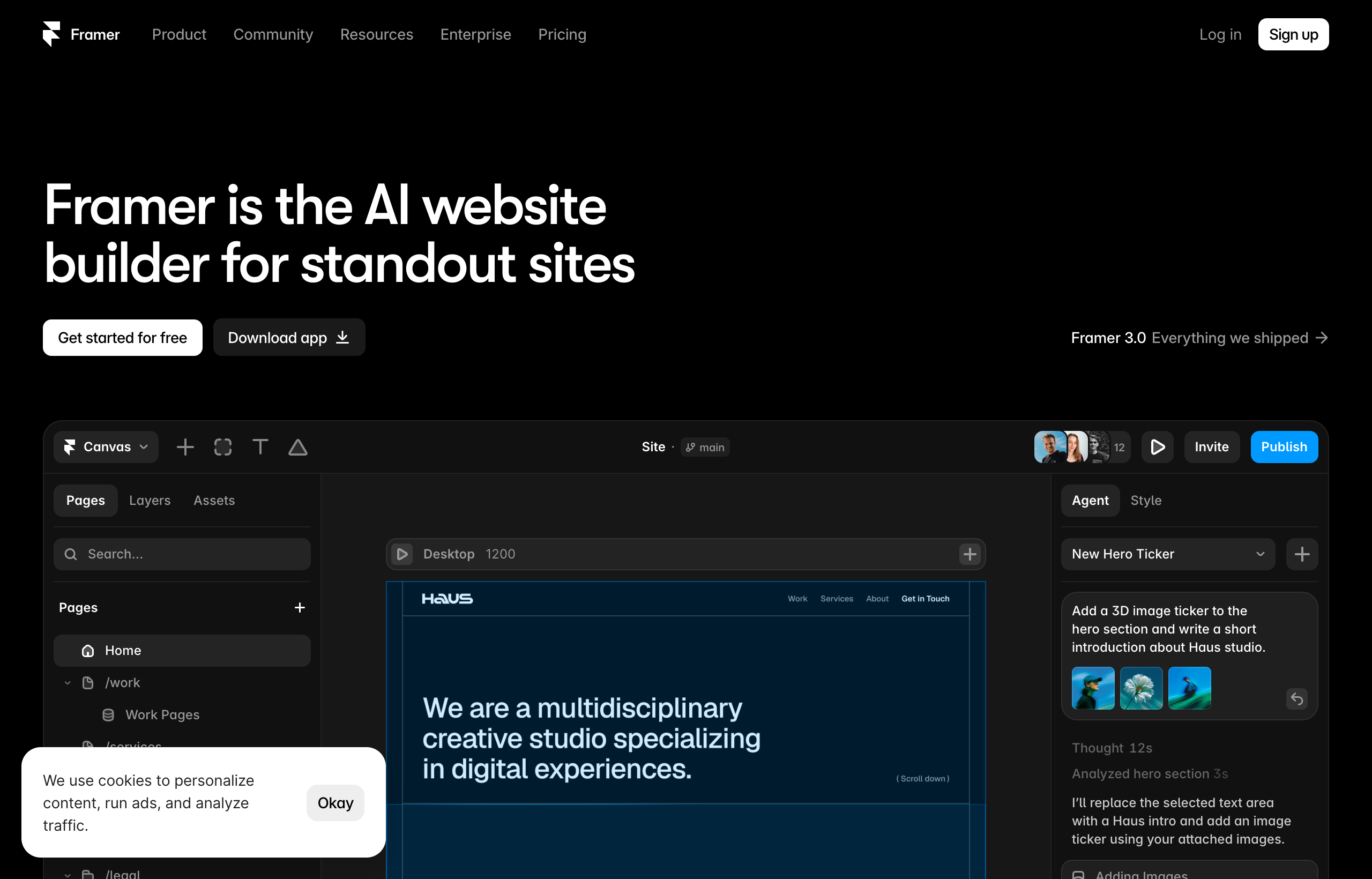
The faster path for most people is to start from a Framer template that resembles the structure you want, then customize it with your content and brand. Framer’s marketplace (Community, then Templates) mixes free and paid options across categories like Business, Creative, and more. Free templates are labeled “Free.” Pick one whose layout roughly matches your page structure, then swap in your real content, colors, fonts, and images. You are not stuck with the template, you are using it as scaffolding.
The other path is a blank canvas, which gives you total control if you have a clear design in mind. Because the canvas feels like Figma, you drag sections in, type directly onto the page, and build with responsive Stacks so your layout flexes cleanly across desktop, tablet, and phone breakpoints.
A useful bonus if you or a designer already mocked up the new site in Figma: you can paste Figma frames directly onto the Framer canvas, and the layers stay editable, so text stays text. That turns a design file into a real, editable starting point instead of a flat picture.
Rebuild page by page, matching the structure from your Step 1 audit. Hero, then your main sections, then footer. Recreate your navigation menu and make sure every internal link points to the right new page. This is where you add the motion Squarespace could not give you: appear-on-scroll effects on sections, subtle hover states on buttons and cards, and smooth transitions between pages. Use restraint. A few well-placed effects read as premium, while a page stuffed with animation reads as slow and try-hard.
Step 4: Recreate your blog and forms
If your Squarespace site had a blog, create a CMS collection in Framer for it. A collection is a content type, like “Blog Posts,” with fields for title, body, featured image, date, and so on. Framer generates dynamic pages from that collection automatically, so you design the post layout once and every post uses it. Re-enter your posts, or use your Squarespace export as the source. Remember the collection limits by plan when you choose your Framer tier: Basic includes 2 collections, Pro includes 10, which is plenty for a blog plus a couple of other content types.
Rebuild your contact and signup forms in Framer as well. Wire them to wherever you want submissions to go, and test them before launch, because a broken contact form on launch day is a silent revenue leak.
Step 5: Match your SEO metadata and set up redirects
This is the step that decides whether you keep your Google rankings or lose them, so slow down here.

First, match your metadata. For every page you rebuilt, set the SEO meta title, meta description, Open Graph image, and image alt text in Framer to match what you carried over from your Step 1 audit. Framer gives you controls for all of these. If Google saw a certain title and description on a page that ranks, you want the new Framer page to present the same signals so the transition is seamless in Google’s eyes.
Second, set up redirects. This is the heart of the whole migration. If your Framer URLs are different from your old Squarespace URLs, every old link, whether from Google’s index or from another site linking to you, needs to point to the correct new page. You do this with 301 redirects, which tell search engines “this page permanently moved here” and pass the ranking value along. Map each important old URL to its new counterpart. Framer’s Pro tier includes site redirects, which is the practical reason many people migrating a real, ranked site choose Pro rather than Basic. Prioritize the high-traffic pages from your audit first, then handle the rest.
Miss this step and you get the classic migration horror story: the new site looks gorgeous, and traffic falls off a cliff because every ranked URL now returns a dead end. Do this step and the transition is smooth.
Rebuilding is the fun part, and it goes faster than you expect once your content is organized. Open a free Framer project and start recreating your top page now. You can build and preview the whole thing before you ever touch your live domain, so there is zero risk to your current site.
Step 6: Test everything before you switch the domain
Framer publishes to a free framer.website subdomain, which is perfect for staging. Publish your rebuilt site there and go through it like a suspicious visitor. Click every navigation link. Submit every form. View every page on a real phone, not just the desktop preview, because responsive issues hide until you check. Read your content for anything that got lost in the copy-paste. Confirm your metadata is set on each page.
Make a checklist from your Step 1 audit and tick off every page. The goal is to launch a finished site, not to discover broken links after your domain is already pointed at it.
Step 7: Point your domain at Framer and go live
When the staged site passes your test, it is time to switch. In Framer, connect your custom domain, and update your domain’s DNS settings to point to Framer instead of Squarespace. Framer walks you through the exact records to set. Once DNS propagates, which can take anywhere from minutes to a day, your custom domain serves the new Framer site.
Do not cancel your Squarespace subscription the instant the switch happens. Keep it active for a short overlap period so you have a fallback and so you can reference the old site if you spot something you missed. Once you are confident the new site is fully live, redirects are working, and traffic looks healthy in your analytics, then you close the Squarespace account.
A migration checklist you can actually use
| Phase | Task | Why it matters |
|---|---|---|
| Audit | List every page: URL, title, meta description, traffic | You cannot protect what you did not map |
| Audit | Flag top pages by search traffic | These get priority redirects |
| Export | Copy all written content, page by page | Your words transfer unchanged |
| Export | Download all images at full resolution | Re-optimize oversized ones now |
| Rebuild | Recreate design in Framer (template or blank) | This is the upgrade you came for |
| Rebuild | Recreate nav, footer, internal links | Broken internal links hurt UX and SEO |
| Rebuild | Rebuild blog as CMS collection, rebuild forms | Mind plan collection limits |
| SEO | Match meta title, description, OG image, alt text | Preserves ranking signals |
| SEO | Set 301 redirects old URL to new URL | The single most important step |
| Test | Publish to framer.website subdomain and check everything | Launch finished, not half-broken |
| Launch | Point domain DNS to Framer | Your address stays the same |
| Launch | Keep Squarespace active during overlap | Safety net before you cancel |
Pitfalls that burn people
Skipping redirects. Said three times on purpose. If you take one thing from this guide, it is that a migration without 301 redirects can tank your search traffic. Map your important old URLs to new ones before you switch the domain.
Changing metadata carelessly. Your ranked pages rank partly on their existing titles and descriptions. Rewriting all of them during a migration adds a variable at the worst possible time. Match first, optimize later once the dust settles.
Forgetting Squarespace-specific features. Native scheduling, member areas, and Squarespace commerce do not come with you. If your business depends on one of these, plan the replacement before you migrate, not after. This is the most common “oh no” moment, and it is entirely avoidable with five minutes of honest inventory in Step 1.
Re-uploading bloated images. Migration is a fresh start. Do not haul your unoptimized 4 MB hero images into the new site and then wonder why the beautiful new build feels slow. Right-size them during export.
Canceling Squarespace too early. Keep the overlap. A short period of paying for both is cheap insurance against a launch-day surprise you cannot roll back.
Trying to rebuild everything at once for a huge site. If you have hundreds of pages, migrate in phases. Move the high-value marketing pages and top blog posts first, get them live and redirected, then work through the long tail.
How long does it actually take?
Set expectations by site size, because “how long” has no single answer.
- A small portfolio or one-to-five-page business site: a weekend once your content is gathered. The design rebuild is the bulk of it, and Framer’s speed makes that quick.
- A standard small-business site, roughly five to fifteen pages, with a modest blog: several days of focused work, most of it content re-entry and redirect mapping rather than design.
- A content-heavy site with a large blog: longer, and mostly bottlenecked by re-entering blog posts and mapping many redirects. The design itself is not the slow part. The volume of content is.
The design work is faster than you fear. The content re-entry and the redirect mapping are the real time costs, and both scale with how much content you have, not with how ambitious your design is. Budget accordingly and you will not be caught off guard.
Frequently asked questions
Is there a one-click way to import a Squarespace site into Framer? No. There is no automatic importer that transfers a Squarespace site into Framer. You rebuild the site in Framer, carrying over your content, images, domain, and SEO metadata manually. It is faster than building from scratch because everything already exists, but it is a manual rebuild, not a migration button.
Will I lose my Google rankings when I move to Framer? Only if you skip the two protective steps. If you set up 301 redirects from your old Squarespace URLs to your new Framer URLs, and you match your page titles and meta descriptions, you preserve your rankings through the transition. Rankings are lost when people forget redirects, not because Framer is worse for SEO. Both tools produce fast, semantic, well-marked-up pages.
Can I keep my domain name? Yes. Your custom domain is yours. During migration you point its DNS at Framer instead of Squarespace, and your web address never changes for your visitors.
Does my blog transfer to Framer? The blog content transfers because it is your writing, but you rebuild the blog structure as a Framer CMS collection. Framer generates dynamic pages from the collection. Keep the plan limits in mind: Basic includes 2 CMS collections and Pro includes 10.
What about my Squarespace store or scheduling? Squarespace-native commerce, scheduling, and member areas do not carry over to Framer, because Framer is a design-first website builder, not a full commerce or booking backend. If you rely on these, plan a replacement with Framer-compatible tools before you migrate, or reconsider whether Framer fits that particular need. Position this honestly with yourself up front.
Which Framer plan do I need for a migration? For a real site with existing rankings, Pro is often the practical choice because it includes site redirects and 10 CMS collections, plus a staging environment for safe testing. Basic works for a simpler site with minimal blog needs and fewer redirect requirements. Pricing and limits were captured July 2026, so confirm the current details before you buy.
Can I preview the new site before switching my domain? Yes, and you should. Framer publishes to a free framer.website subdomain that works perfectly as a staging URL. Build and test the entire site there, then only point your real domain once everything passes your checklist. Your live Squarespace site stays untouched the whole time.
How much faster is Framer to work in after I migrate? Once you are past the learning curve, editing and republishing in Framer feels fast and direct, because you design straight on the canvas and publish to a global CDN. The bigger win most people report is not raw speed but creative freedom: things Squarespace templates would not let you do become straightforward.
The bottom line
Migrating from Squarespace to Framer is a rebuild, not an import, and that framing is the key to doing it well. You carry over the parts that are already yours, your content, images, domain, and SEO metadata, and you recreate the design, structure, and navigation on Framer’s canvas, which is the whole reason you are moving. Done in the right order, with your metadata matched and your redirects in place, you keep your rankings and gain a site that looks and moves like it belongs in 2026.
The design rebuild is the fun, fast part. The redirects and metadata are the insurance that protects everything you have built. Respect both, keep Squarespace running during a short overlap, and the switch is smooth rather than scary.
You do not have to commit to anything to find out whether this move is right for you. You can rebuild your homepage in Framer, on a staging URL, for free, without touching your live site.
Create your free Framer site and start your migration today. Rebuild one page, feel the difference, and preview the whole thing before you ever point your domain. If the first hour feels this good, you already have your answer.
Pricing, plan names, CMS limits, and marketplace details cited from Framer’s live pricing and community pages, captured July 2026. Tiers and numbers change over time, so confirm the current details on framer.com/pricing before you buy, and check Squarespace’s current export options before you migrate.


