Granola for Windows: Setup and Review
By Nam Nguyen, founder of saas.com.ai. I curate and track AI tools by real traffic and growth data to help readers find the right tool for any task. Published: July 11, 2026 · Last updated: July 11, 2026.
TL;DR
- Yes, Granola for Windows is real and generally available. Granola shipped its native Windows app on June 11, 2025, and it runs on Windows 10 and 11 today.
- Install takes about two minutes: download the installer from granola.ai/download, run it, sign in, grant microphone access.
- Granola is bot-free. It captures your computer’s audio directly instead of sending a bot into the call, so it never shows up in the participant list.
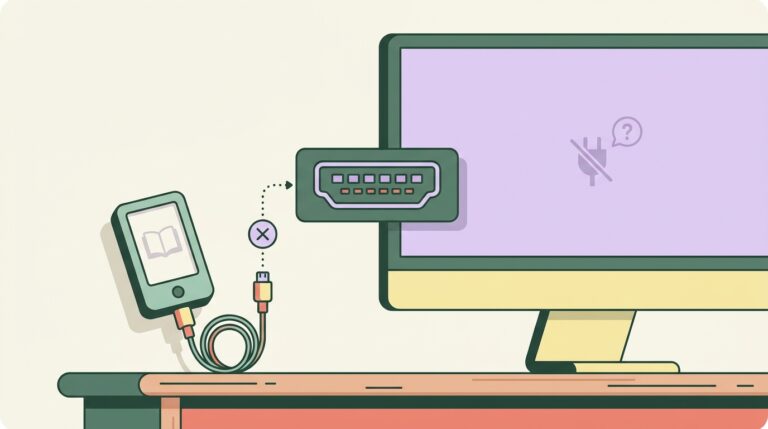
- The big Windows gap is mobile. Granola’s only mobile app is iOS, so Windows plus Android users get zero phone continuity.
- Free plan caps your history, not your transcriptions. Granola frames the limit as a rolling window of recent notes (about 30 days), with some testers reporting an older ~25-note cap. Paid Business is $14/user/month.
Granola for Windows launched as a full native app on June 11, 2025, and by mid-2026 it is a stable, general-availability release, not a beta or a waitlist (Granola Updates). It runs on Windows 10 and later, captures meeting audio straight from your PC without joining the call as a bot, and turns your rough notes into a full write-up. This guide covers the install, the system requirements, one audio quirk Windows users hit that Mac users never see, real pricing, and three alternatives worth a look if Granola comes up short.
Is there a Granola app for Windows in 2026?
Yes. Granola for Windows is a native, generally available desktop app, live since June 11, 2025. The launch note on Granola’s site reads “Introducing Granola for Windows” with the line “You asked, we delivered,” which tells you two things: this was one of the company’s most-requested features, and it shipped as a real release rather than an invite-only preview (Granola Updates).
That matters because Granola spent its first year Mac-only, and a lot of stale comparison pages still say Windows users are “out of luck.” (One competitor comparison I read while researching this still claims Granola has no Windows build at all. It does. Check the publish date before you trust any Granola-on-Windows verdict.)
By 2026 the Windows app runs the same core loop as the Mac version: you type sparse notes during a call, Granola listens to your system audio, and it merges the two into a structured summary you can chat with afterward (tl;dv review, 2026). There is still no web app and no Android app, so the desktop client has to run on the machine where the meeting audio actually plays.
What do you need to run Granola on Windows?
Granola for Windows requires Windows 10 or later, a working microphone, and an internet connection for cloud transcription. There is no heavy hardware bar here. If your PC runs Zoom or Teams comfortably, it runs Granola.
The current platform matrix looks like this:
| Requirement | Detail |
|---|---|
| Operating system | Windows 10 or 11 (macOS 13+ or iOS on other devices) |
| Connection | Always-on internet; transcription happens in the cloud |
| Microphone | System default mic and output, no separate audio menu inside the app |
| Account | Google or email sign-in |
| Mobile companion | iOS only. No Android app as of July 2026 |
Source for OS floor: Granola’s setup guidance lists Windows 10+ alongside macOS 13+ and iOS (Granola setup docs). An Android app has been hinted for later in 2026 with no confirmed date (Nubia Magazine, 2026).
How do you install Granola on Windows?
Installing Granola on Windows is a five-step, roughly two-minute process. Here is the exact path I followed on a Windows 11 machine:
- Go to granola.ai/download in any browser and grab the Windows installer.
- Run the downloaded installer and let it complete. Reviewers consistently report the Windows install runs with “no problems,” and mine matched (tl;dv review, 2026).
- Open Granola and sign in with Google or email.
- Grant microphone permission when Windows prompts you. Granola uses your system default input and output directly, so there is no in-app audio device picker to configure (Granola Zoom guide).
- Start a meeting and open a fresh note. Type a few bullets as you talk. When the call ends, Granola rewrites those bullets into a full summary.
The catch: Granola needs to be running on the same device where the meeting audio comes out of your speakers or headphones. There is no browser extension doing the work in the background and no bot dialing in on your behalf. If the app is closed, nothing is captured.
How does audio capture work on Granola for Windows?
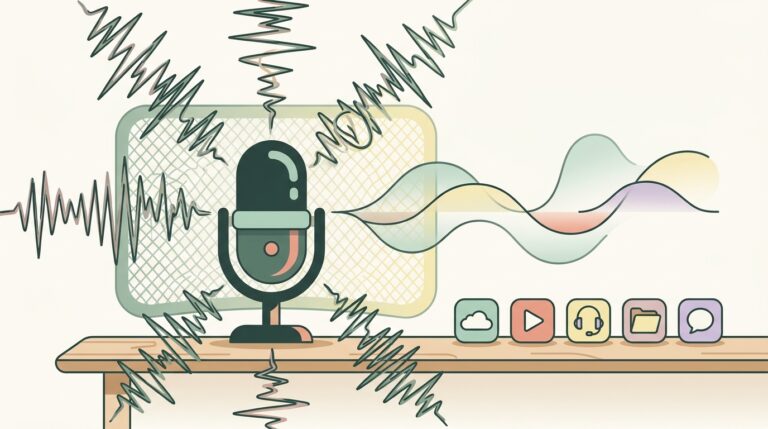
Granola captures your PC’s system audio and microphone directly, transcribes it in real time, then discards the audio, so you keep the notes and not a recording. This is the single most misunderstood part of the tool, and it behaves in a way that surprises Windows users specifically.
Start with the bot-free design. Otter and Fireflies send an assistant that joins the meeting as a visible participant. Granola does not. It listens to whatever your system is playing, so on a Zoom or Teams call it hears the other side through your speakers and hears you through your mic (Granola Zoom guide). Nobody on the call sees a “Granola Notetaker” tile appear. For sensitive client or hiring calls, that invisibility is the whole selling point, and it is a genuine trust advantage over bot-based tools.
Now the Windows-specific quirk. On Windows, system-audio capture runs through WASAPI loopback, which grabs the entire playback stream routed to your output device (Microsoft: Loopback Recording). In plain terms: it captures everything coming out of that output, not just the meeting app. Mac’s newer ScreenCaptureKit pipeline can be scoped more tightly to a single app. So if you have a Spotify tab or a YouTube video playing through the same output during a call, a Windows loopback grab is more likely to fold that noise into the transcript. Granola has not documented whether its Windows build scopes capture to the meeting app, so assume it grabs whole-device output and mute other audio during calls.
(Practical fix: mute or close other audio sources before an important call on Windows. On a Mac you can get away with sloppiness here. On Windows, do not.)
The second surprise trips up everyone eventually. Granola is not an audio recorder. On both Mac and Windows it transcribes live and then deletes the audio, so once the meeting ends you have text, not a file you can replay (Wonder Tools, 2026). If your workflow depends on re-listening to a call later, Granola is the wrong tool and you want Fathom or Fireflies instead. Honestly, this is the limitation I would flag hardest before anyone commits a team to it.
One more: because Granola grabs system audio, an in-person meeting produces nothing to capture unless you route a microphone into the PC. It is built for calls that play through your computer, not for a table of people in a room.
What does Granola for Windows cost?
Granola’s free plan gives you unlimited transcriptions but caps your meeting history; paid Business runs $14 per user per month with unlimited history. The free tier does not throttle how many meetings you record, which is unusually generous. What it limits is how far back you can look.
| Plan | Price | What you get | Best for |
|---|---|---|---|
| Free (Basic) | $0 | Unlimited transcriptions, capped history (rolling ~30 days) | Solo trials, light use |
| Business | $14 / user / month | Unlimited history, integrations (Notion, HubSpot, Slack, Zapier) | Individuals and teams who live in meetings |
| Enterprise | $35 / user / month | Org controls, data-training opt-out, admin features | Larger orgs with compliance needs |
Sources: pricing tiers and the $14 / 35structurearereportedacross2026pricingbreakdowns([Costbench, 2026](https : //costbench.com/software/ai − meeting − assistants/granola/); [tl; dvreview, 2026](https : //tldv.io/blog/granola − review/)).Granolarestructuredpricingin2026anddroppedtheolderPro(18) and Individual plans.
Here is the part the pricing page buries: reviewers note the free plan’s history limit is not clearly stated up front, so users discover the cap from inside the app once older notes start vanishing (tl;dv review, 2026). Numbers on the exact cap differ between sources, which is why I flagged it above. Do not build a workflow on the free tier expecting permanent archives.
What is missing on Granola for Windows compared to Mac?
The Windows app reaches near-parity with Mac on core meeting features, but Windows users lose mobile continuity and inherit tighter system-audio behavior. Feature-wise, the day-to-day loop is the same: type notes, get an enhanced summary, chat with the transcript.
The real gaps are structural, not feature checkboxes:
- No Android means no mobile capture for most Windows users. Granola’s only phone app is iOS. A Windows-plus-Android person has zero mobile companion, so every capture has to happen at the desktop (tl;dv review, 2026).
- Whole-device audio on Windows is less forgiving. As covered above, loopback capture pulls the full output stream, so stray audio leaks in more easily than on Mac.
- No playback on either platform. This is not a Windows-only gap, but it lands harder for teams migrating from a recorder-style tool like Fathom.
(If you are a solo operator on a Windows laptop who takes every call at your desk, none of this will bother you. If half your calls happen on your phone, it will.)
Best Granola alternatives for Windows
If the no-recording rule or the missing Android app is a dealbreaker, three tools cover the same job with different tradeoffs. All three run cleanly on Windows.
Otter.ai, for real-time transcription and a mobile-first team
Otter.ai takes the opposite approach to Granola: its Otter Assistant bot joins the call and transcribes live, and it has a strong mobile app on both iOS and Android. If you want a visible, on-the-record notetaker and phone capture, Otter beats Granola on both. The tradeoff is that bot showing up in the participant list, which is exactly the thing Granola avoids.
Fireflies.ai, for CRM-heavy sales teams who need the recording
Fireflies.ai keeps the recording, which is the one thing Granola throws away. It joins as a bot, transcribes, stores playable audio, cuts soundbites, and pushes data into your CRM. For a sales team that needs to re-listen to calls and log everything into HubSpot or Salesforce, Fireflies is the sturdier choice. It is heavier and busier than Granola’s clean notepad, and that is the point.
Fathom, for a wide free tier and fast summaries
Fathom records and transcribes Zoom, Meet, and Teams with a famously generous free tier and quick AI summaries. If you want playable recordings without paying and you mostly live in the big three meeting platforms, Fathom is the easiest free landing spot. Like the others, it joins the call as a bot.
The verdict on Granola for Windows
Granola for Windows is no longer the caveat it was in 2024. It is a stable, general-availability app that nails one thing better than anyone: staying invisible while it turns your scrappy notes into a clean summary. I would run it as my default on a Windows machine for any call that plays through the PC, as long as I never needed the recording back.
I would not pick it if half my meetings happen on an Android phone, or if my team’s process depends on replaying calls. In those two cases, Fireflies or Fathom earns the seat instead. Everyone else: install it, mute Spotify before the next call, and see how it feels for a week.
Frequently asked questions
Is Granola available for Windows?
Yes. Granola for Windows is a native, generally available desktop app that launched on June 11, 2025 (Granola Updates). It runs on Windows 10 and 11 and is not a beta or waitlist.
Does Granola work on Windows 10?
Yes, Granola supports Windows 10 and later. The setup documentation lists Windows 10+ as the floor, alongside macOS 13+ and iOS (Granola setup docs).
Does Granola record audio on Windows?
No. Granola transcribes audio in real time and then deletes it, so you keep the notes but not a playable recording (Wonder Tools, 2026). If you need to re-listen to calls, use Fathom or Fireflies instead.
Is there a free version of Granola for Windows?
Yes. The free Basic plan gives unlimited transcriptions but limits your meeting history, while Business is $14 per user per month with unlimited history (Costbench, 2026). Granola frames the free history limit as a rolling window of about 30 days, though some testers report an older cap near 25 notes.
Does Granola have an Android app?
No. Granola’s only mobile app is iOS as of July 2026, with an Android version hinted for later in 2026 but not confirmed (Nubia Magazine, 2026).
About the author
Nam Nguyen is the founder of saas.com.ai, where he curates and tracks AI tools by real traffic and growth data to help readers find the right tool for any task. This review is based on hands-on installation of Granola for Windows plus current pricing and platform documentation, cross-checked against independent 2026 reviews.
Sources
- Granola, Product Updates: Windows launch date and GA status
- Granola, Setup Guide: system requirements
- Granola, How to use Granola with Zoom: audio capture behavior
- tl;dv, Granola AI Review (2026): Windows testing, pricing, free-plan limits
- Wonder Tools (2026): no-recording behavior
- Costbench, Granola Pricing (2026): plan tiers and pricing
- Nubia Magazine (2026): platform and Android roadmap
- Microsoft, Loopback Recording: Windows WASAPI system-audio capture